
Plan
View and manage your Trip Itineraries with simple and powerful features
Manage Trips
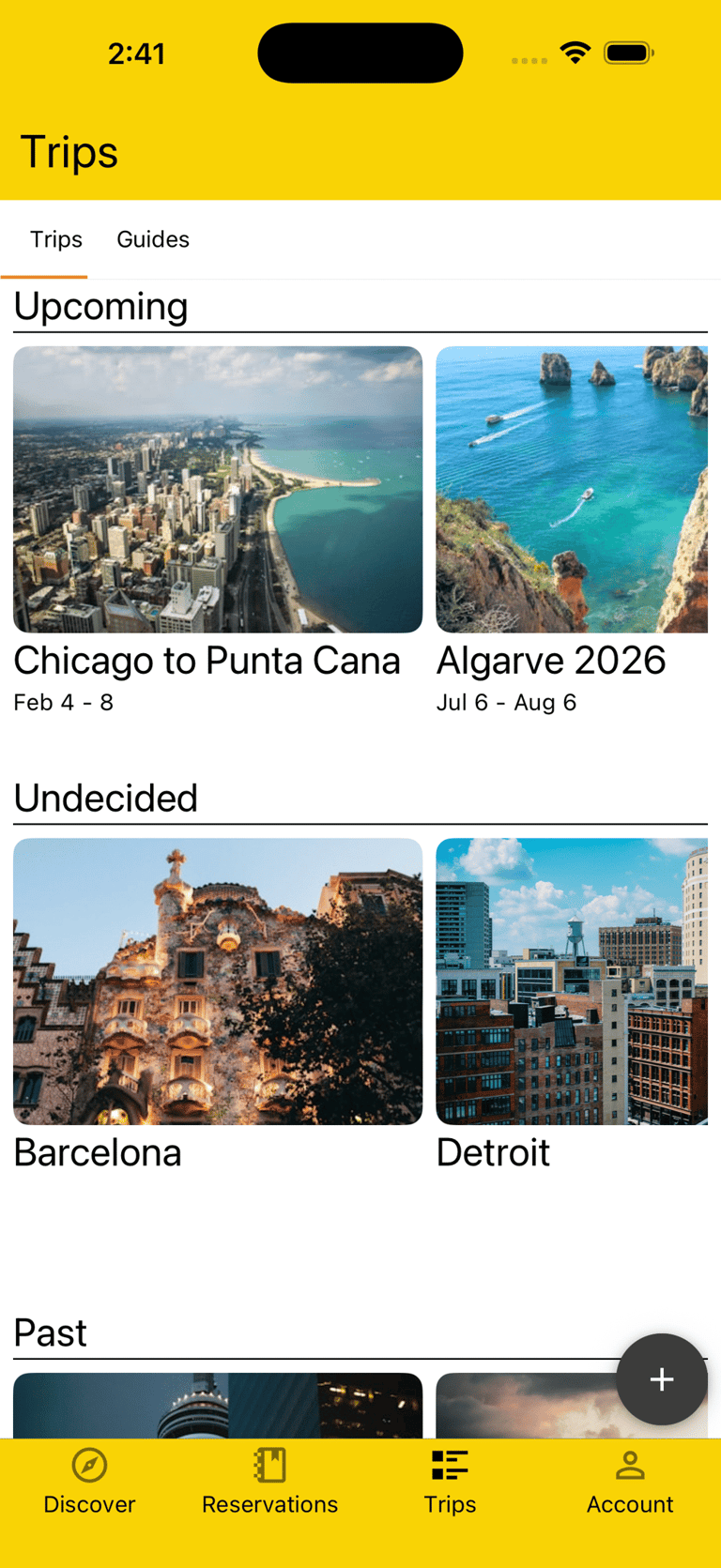
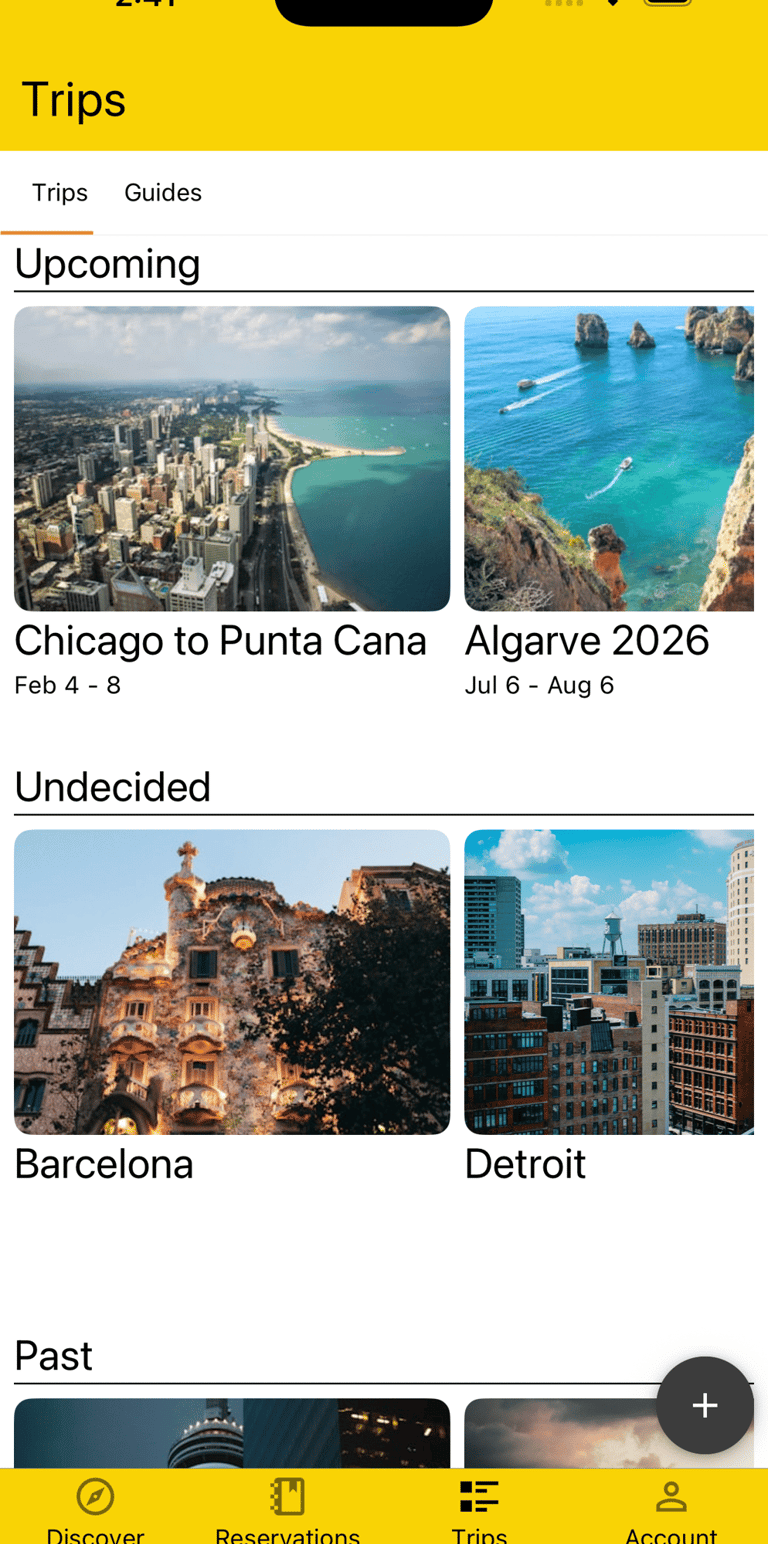
You can view all your Upcoming, Undecided (no dates yet), and Past Trips in one place, sorted chronologically by date so you can find the most relevant Trips quickly.
You can easily create a new Trip with or without dates and choose from multiple beautiful photos matching your Trip name as it's display image.
You can always edit these later, create as many Trips as you want, and delete any Trips you're no longer going on.
Copy Trip
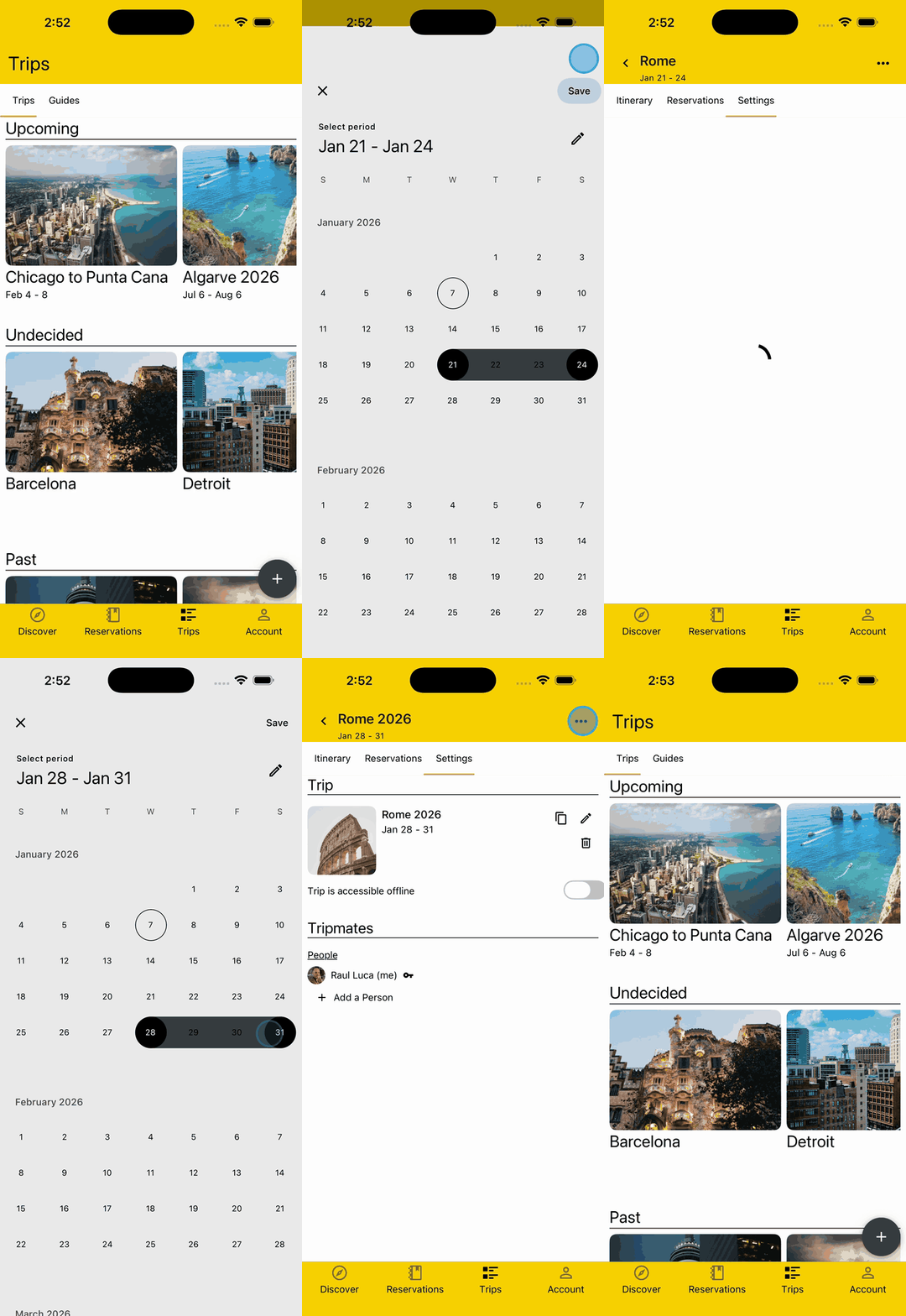
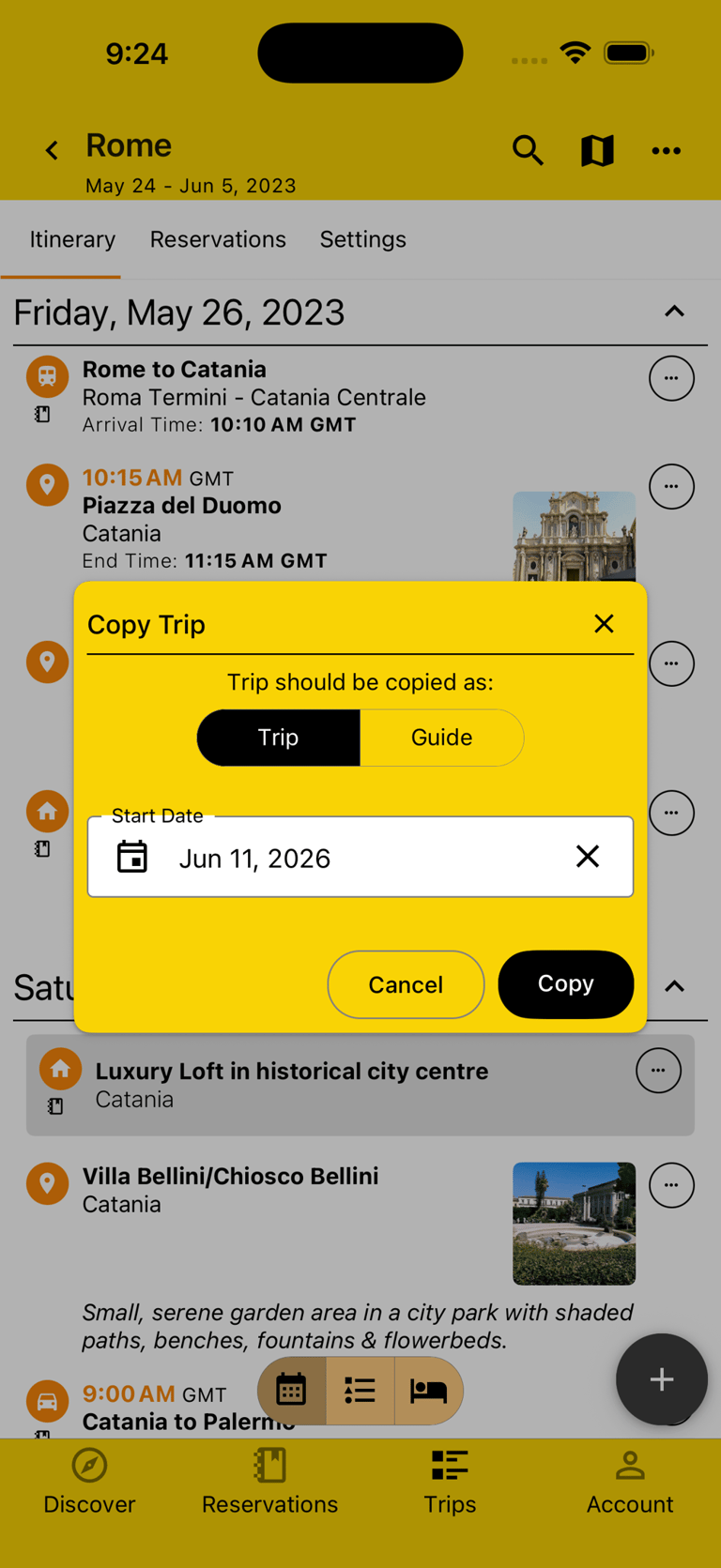
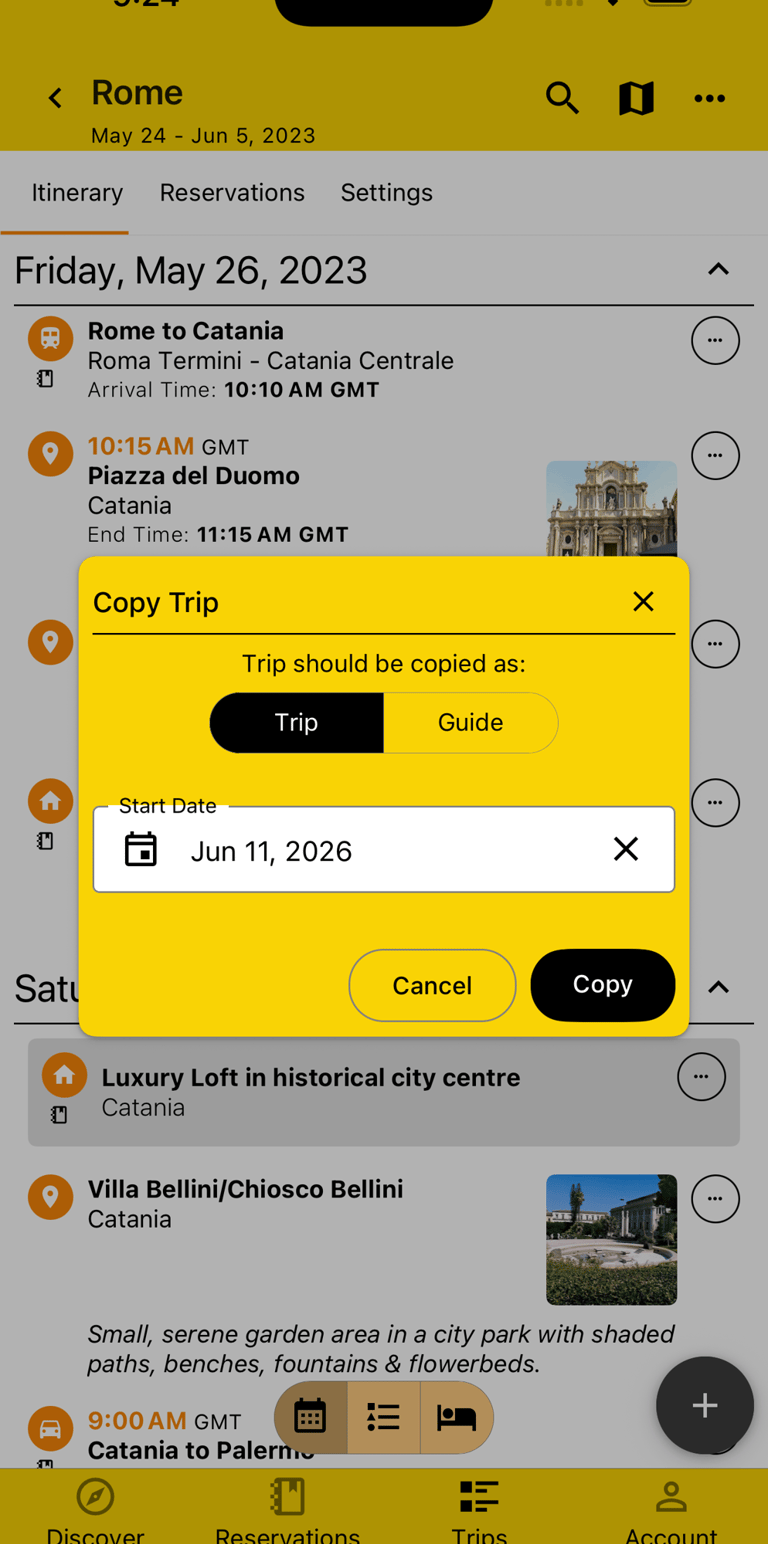
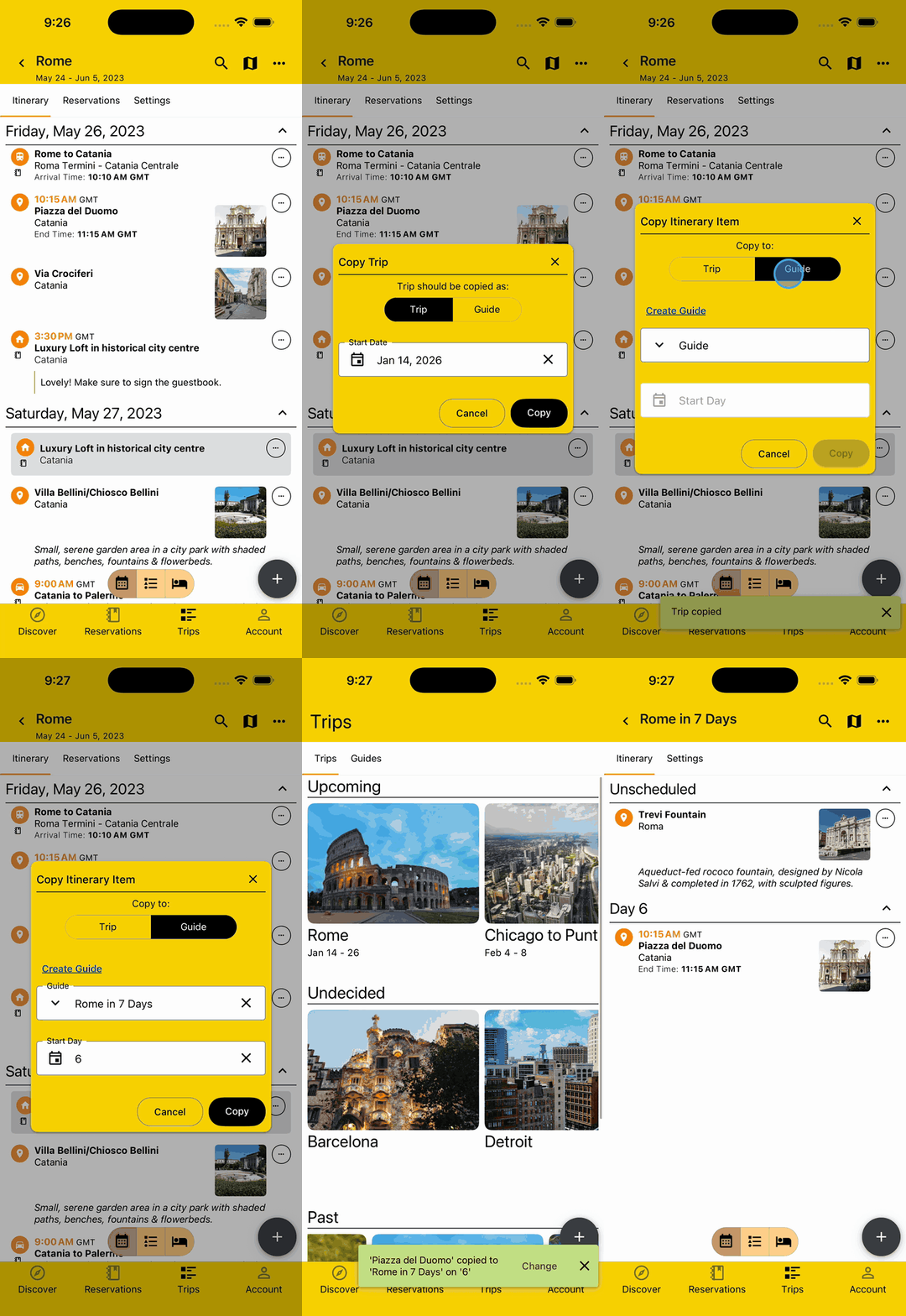
You can copy Trips, or even their individual Plans, for those times you want to visit a place again but don't want to plan everything again. The Trip is copied intelligently, with things like Reservations and Tripmates that belong to the original Trip not being copied.
You can also copy a Trip to inspire others about where you've been by turning your Trip into a Guide and sharing it with others on BTravelrs or beyond.
Feature unique to BTravelrs
Build Itinerary
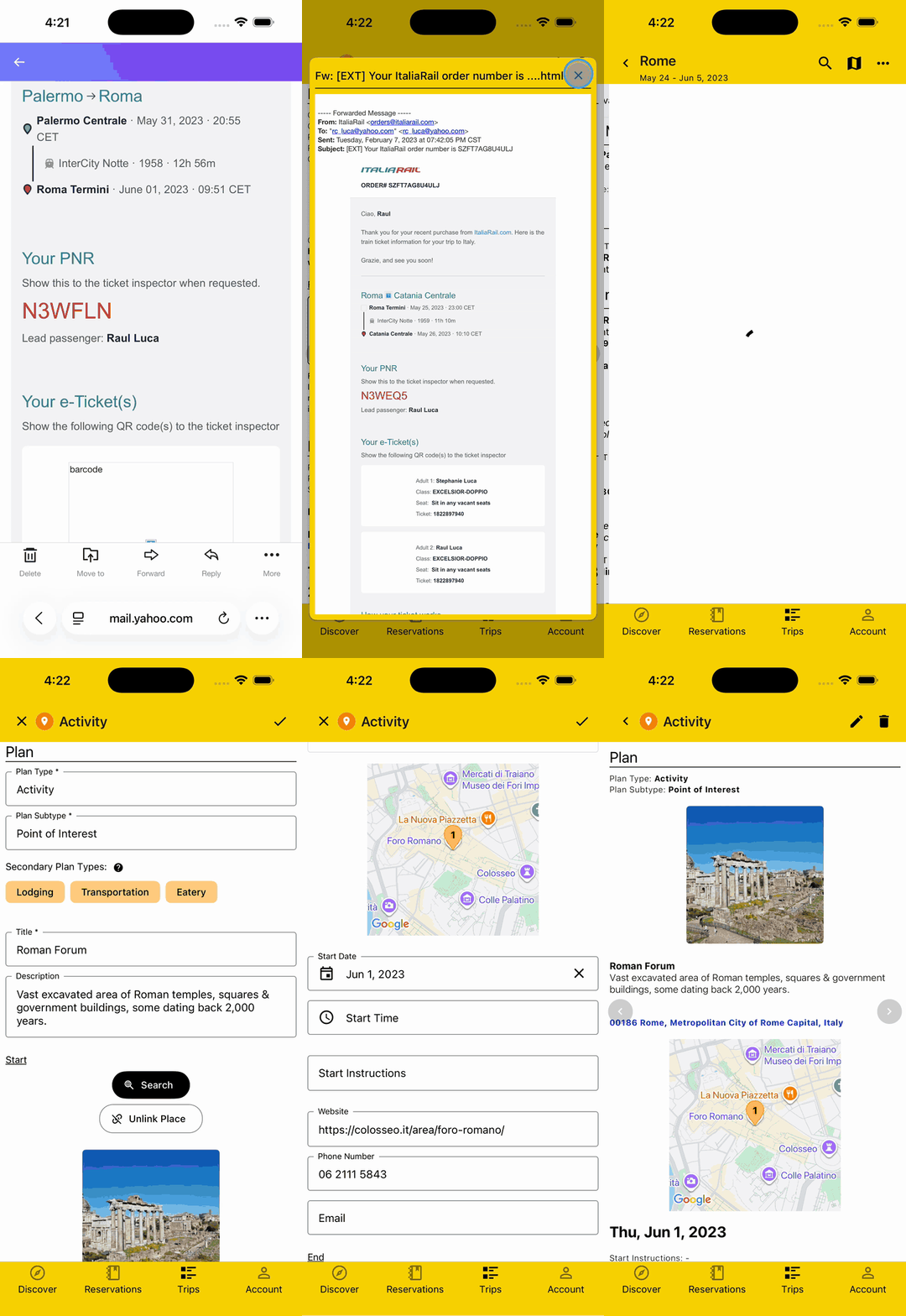
You can quickly build your Itinerary by forwarding your Reservation emails to the Imports email or by manually adding a Plan to your Itinerary.
Your forwarded emails will get parsed based on your email address and then added to a matching existing Trip based on dates or to a new automatically created one.
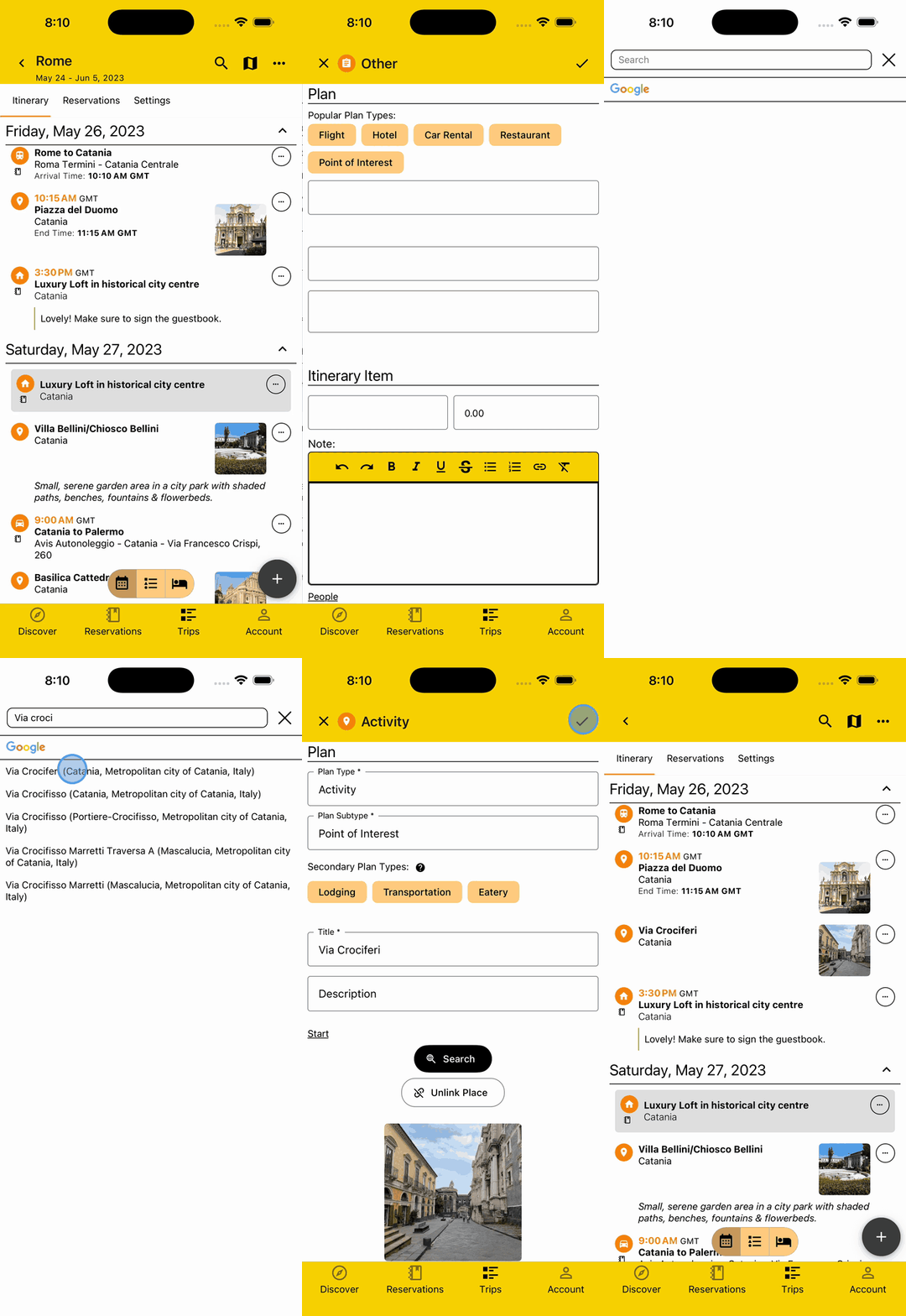
When adding a Plan, you are assisted by quick Plan Type selection options, smart geofenced Place search with Google, and intuitive Country and Timezone suggestions based on the rest of your Itinerary.
Add Plans Strategically
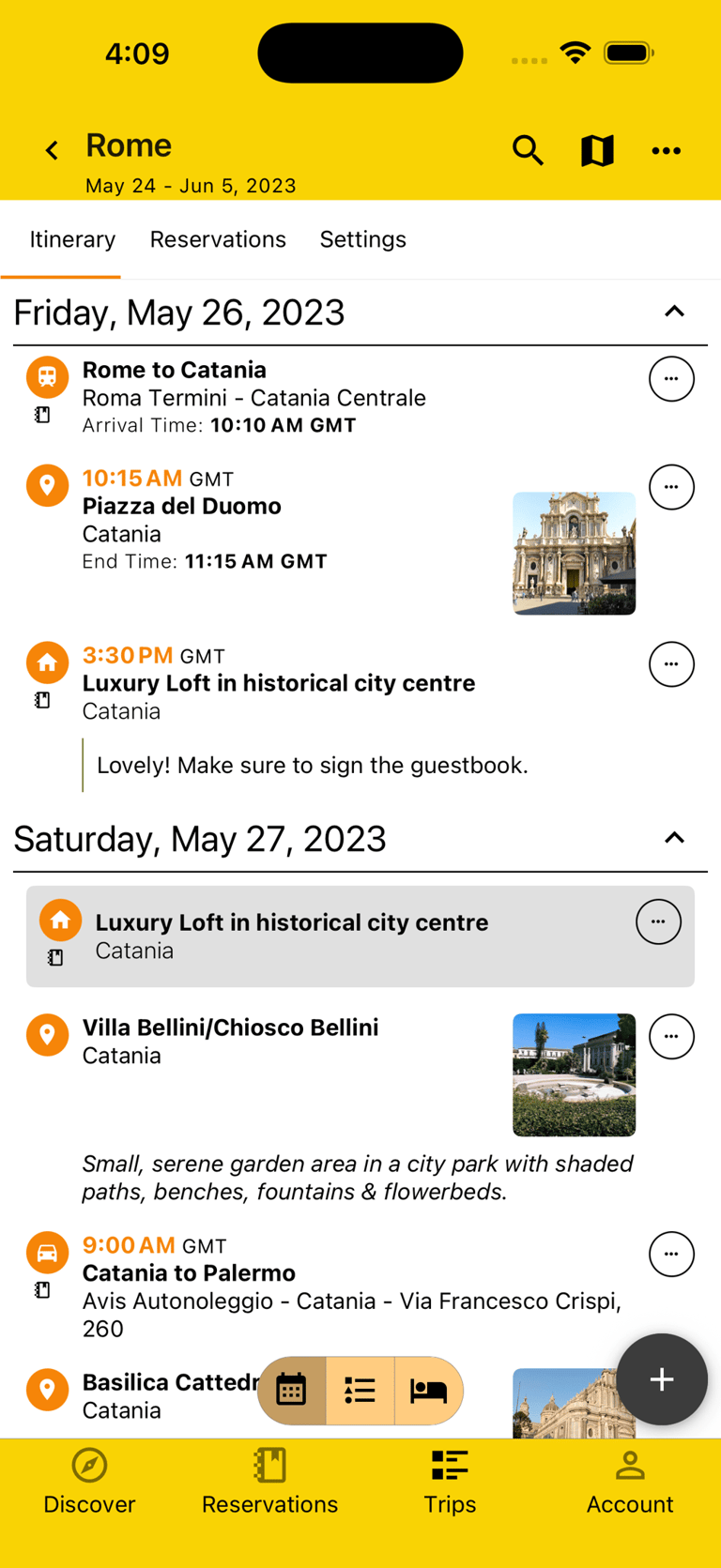
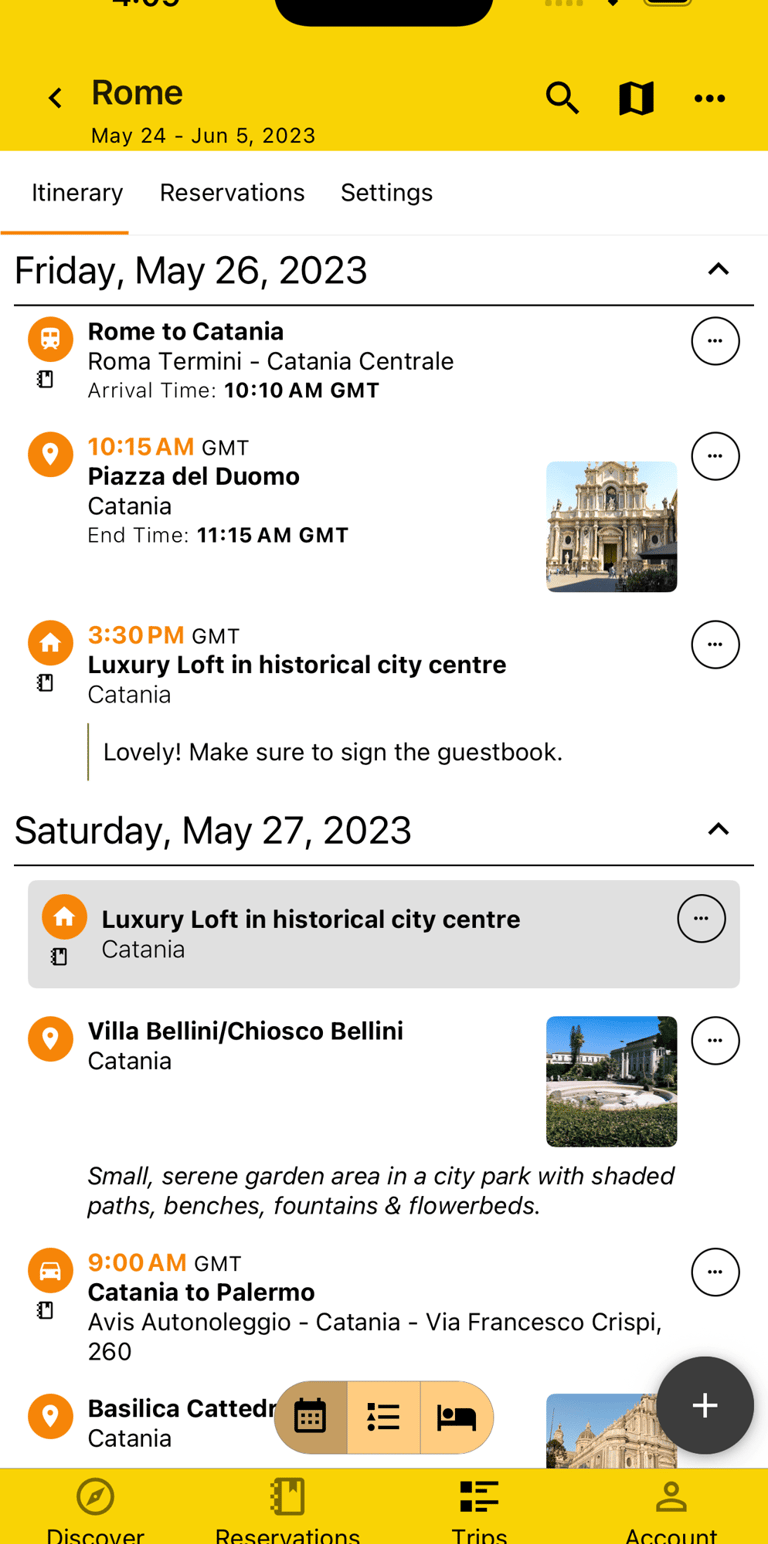
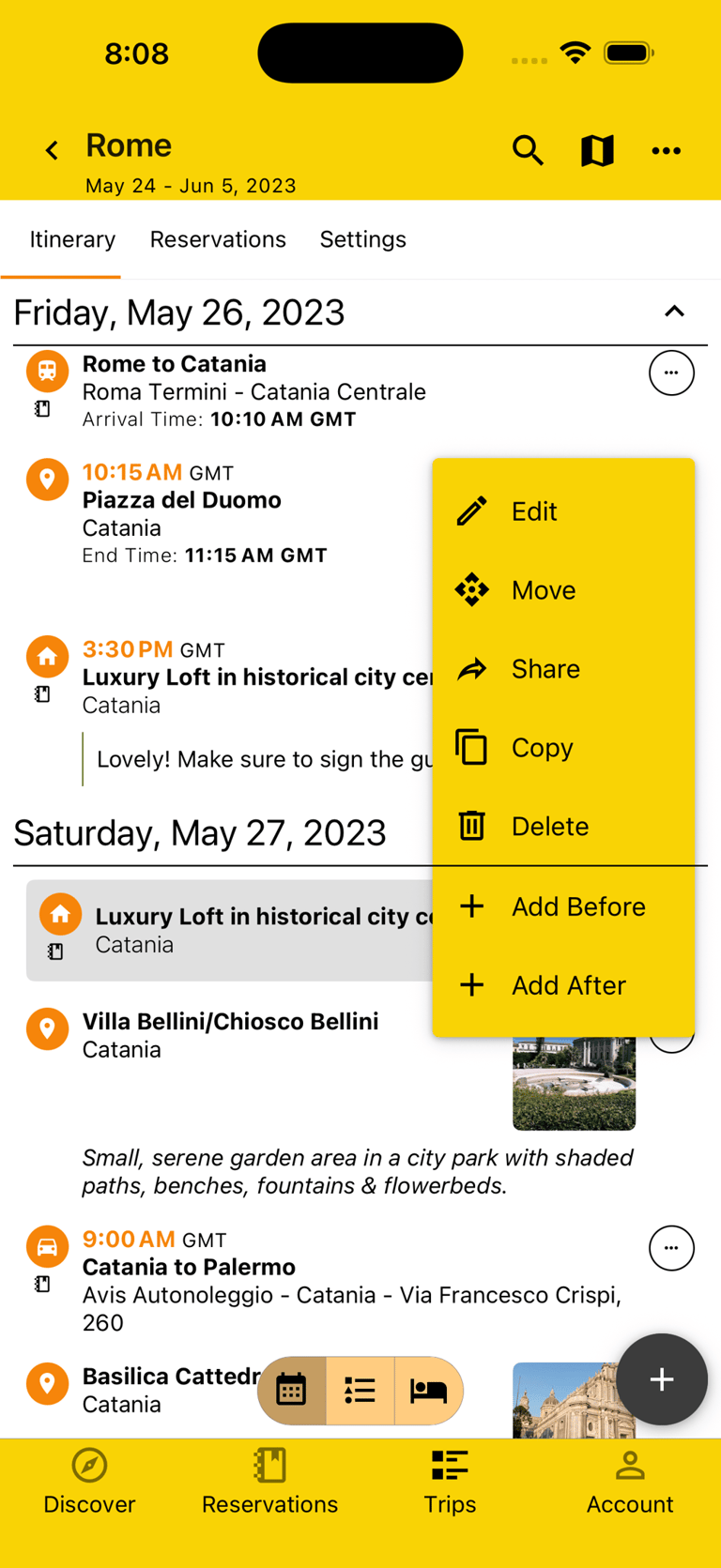
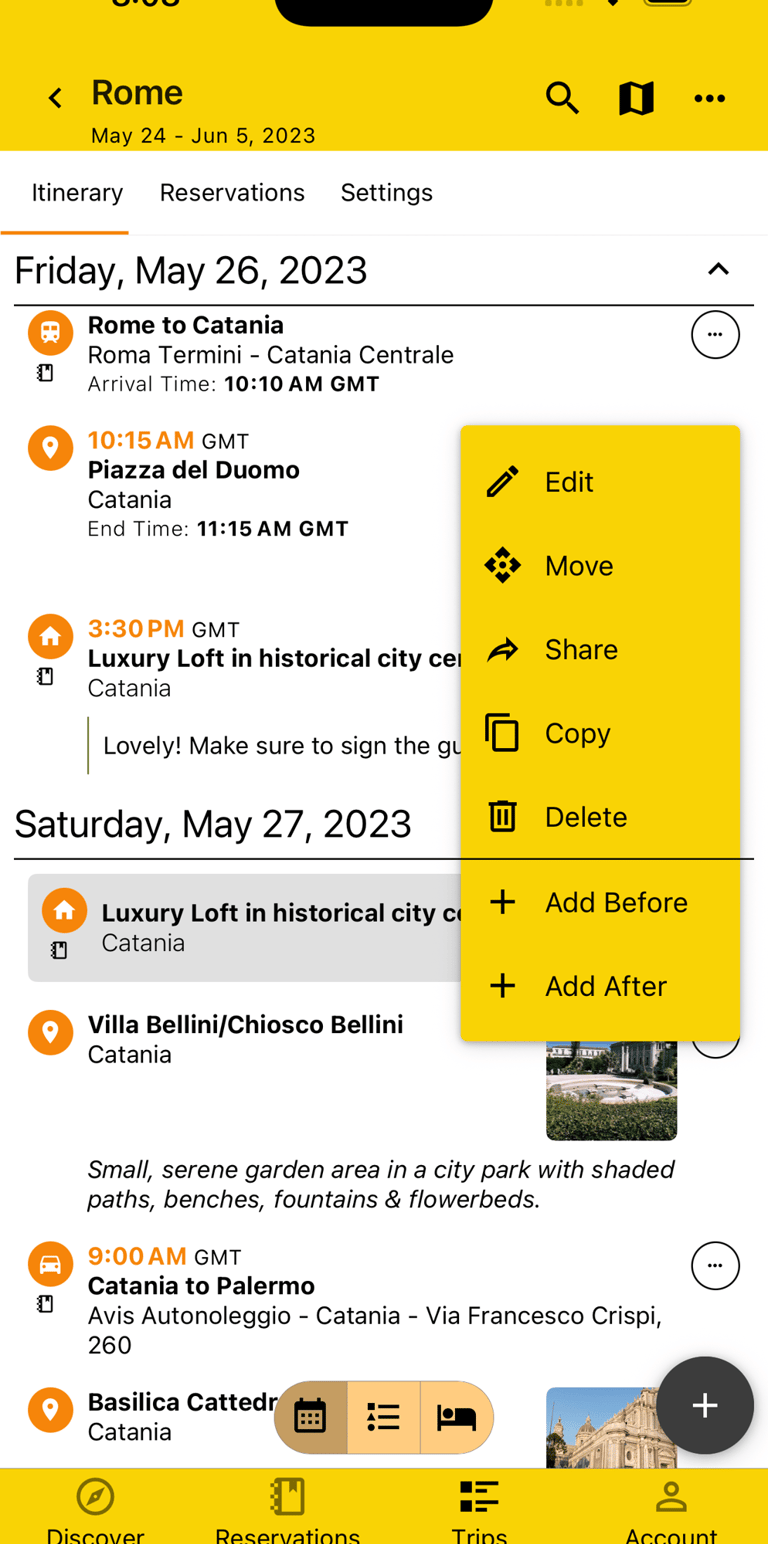
Plans can be added from the top-level or by clicking any Itinerary Item on any Itinerary view and choosing to add it before or after that Plan, saving you time selecting a date or moving it around afterwards, especially if you don't set a time.
A Plan can include a date and/or time or neither and can be arranged however you want, allowing maximum flexibility.
Feature unique to BTravelrs
Move & Rearrange Plans
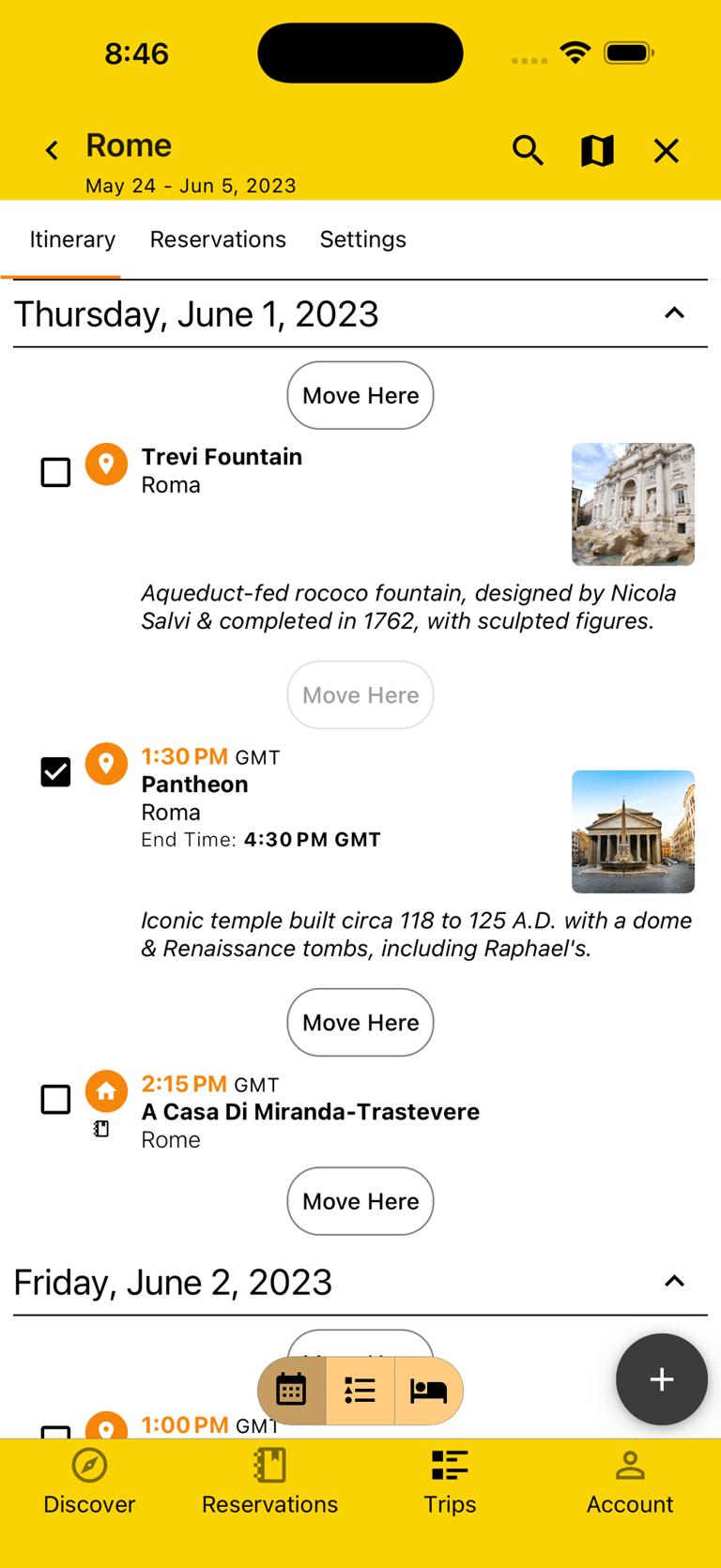
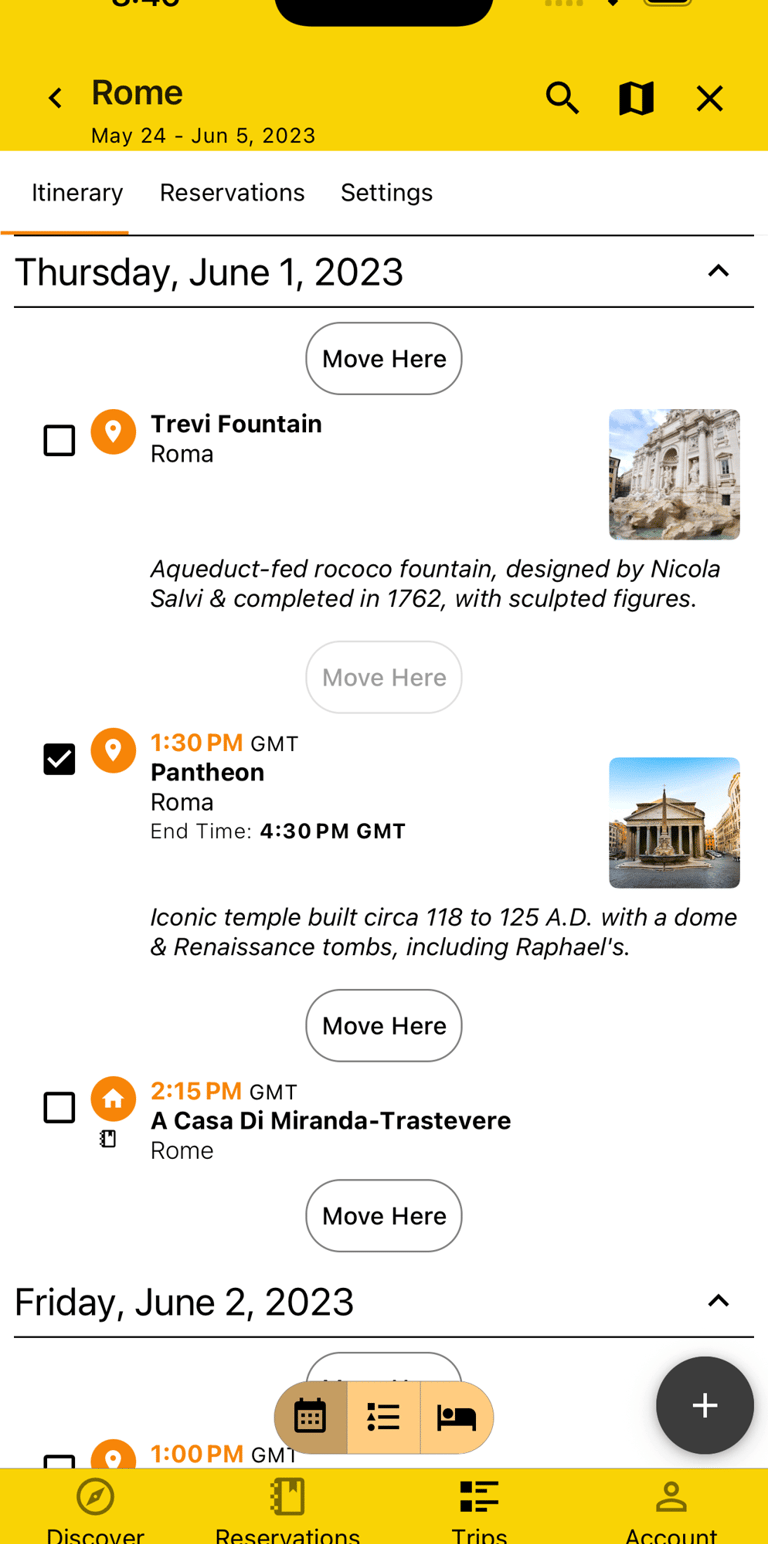
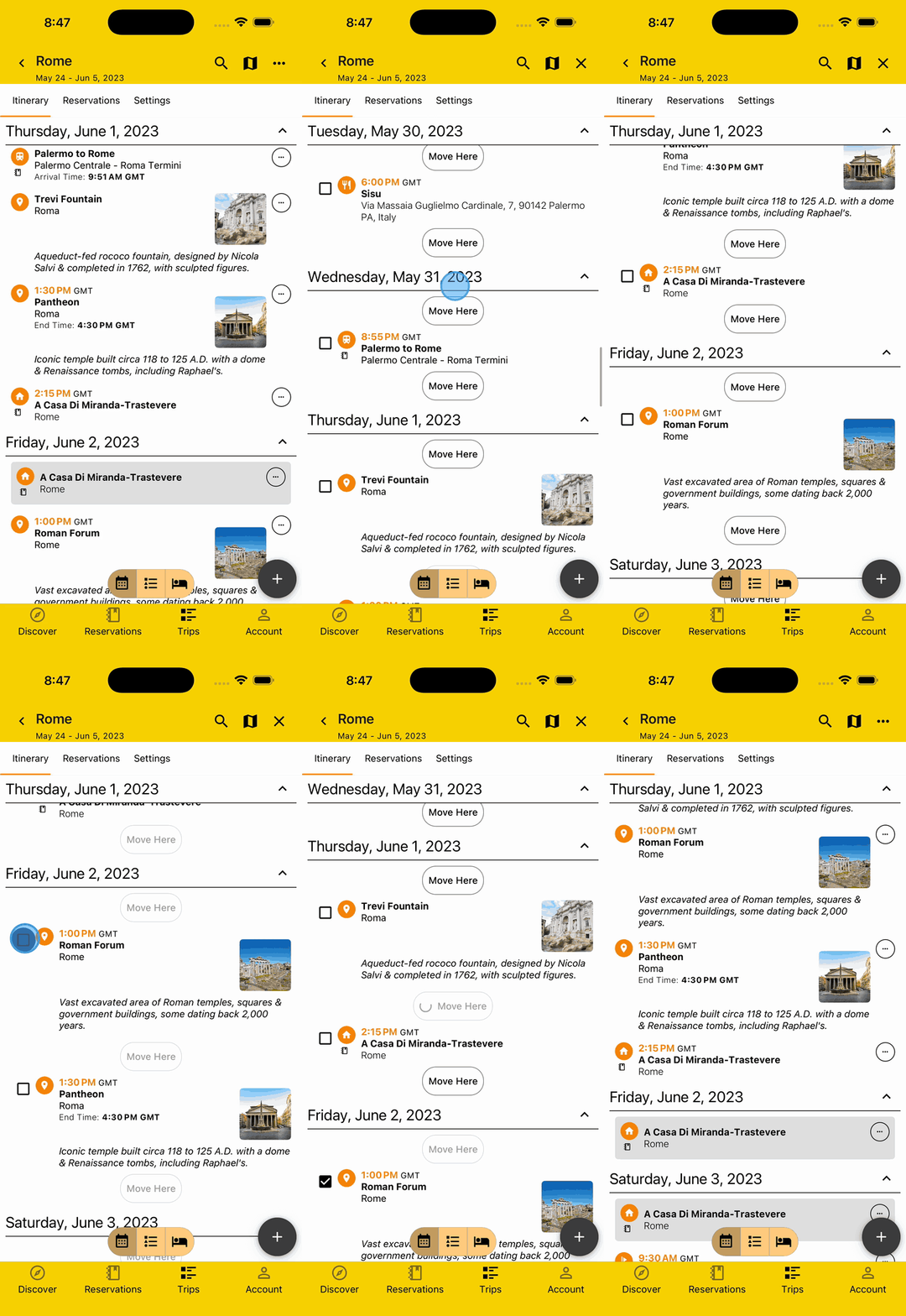
Plans can be easily moved around individually or collectively to anywhere in the Itinerary, with the dates and times updating accordingly, without the need to manually update each one. If the times need to change, reasonable estimates are made for how to adjust them using things like duration of the previous and next Plan.
View Itinerary Multiple Ways
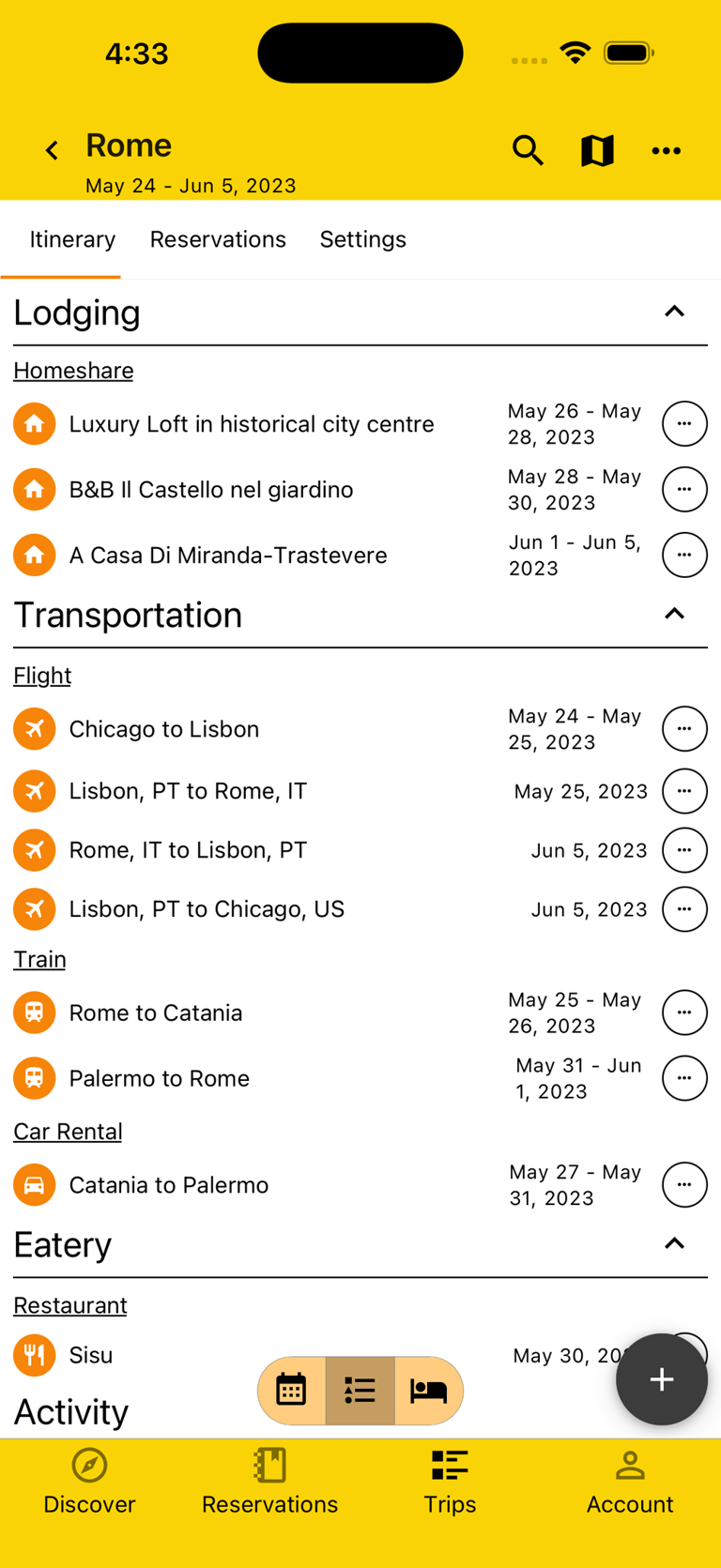
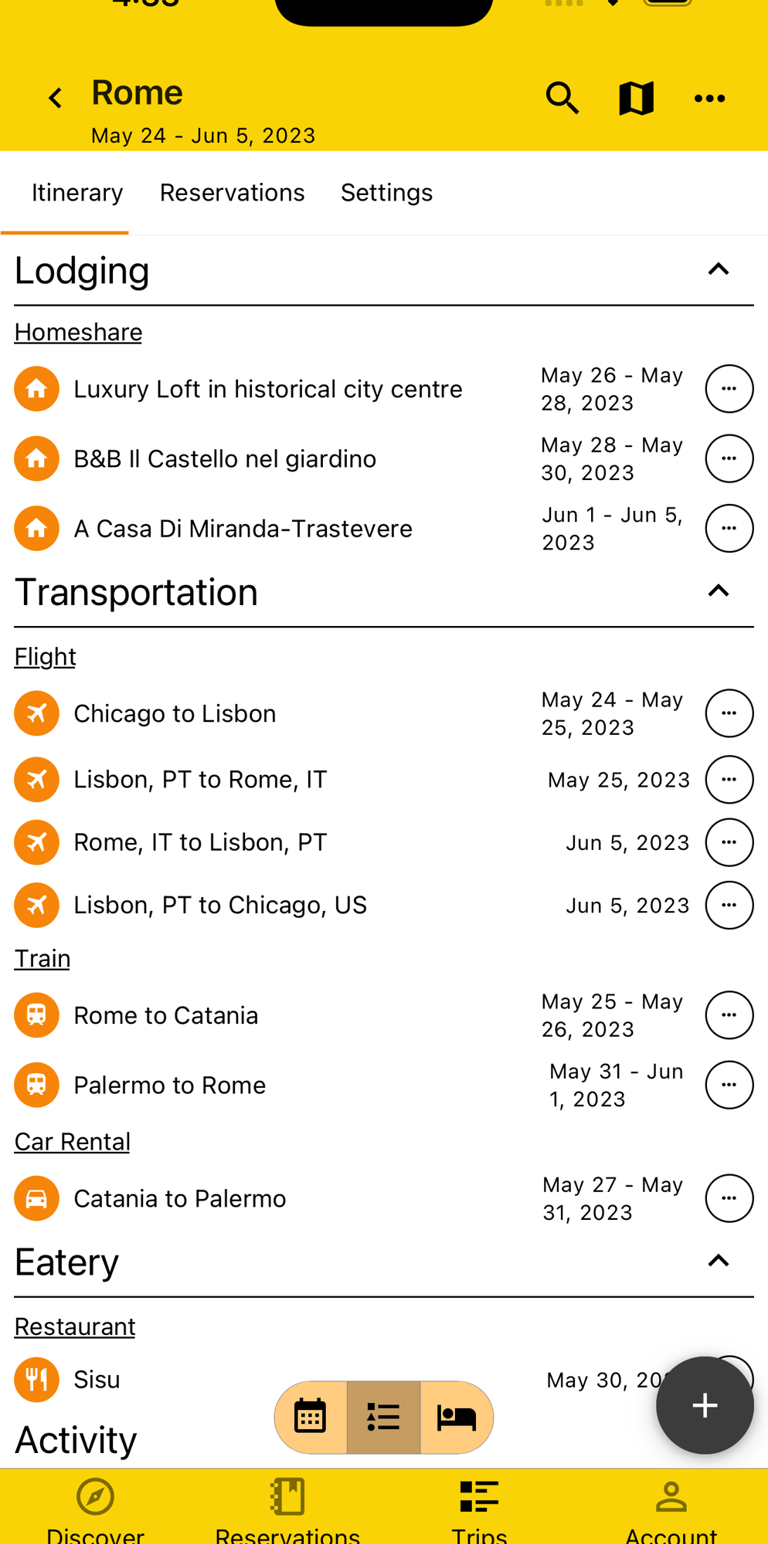
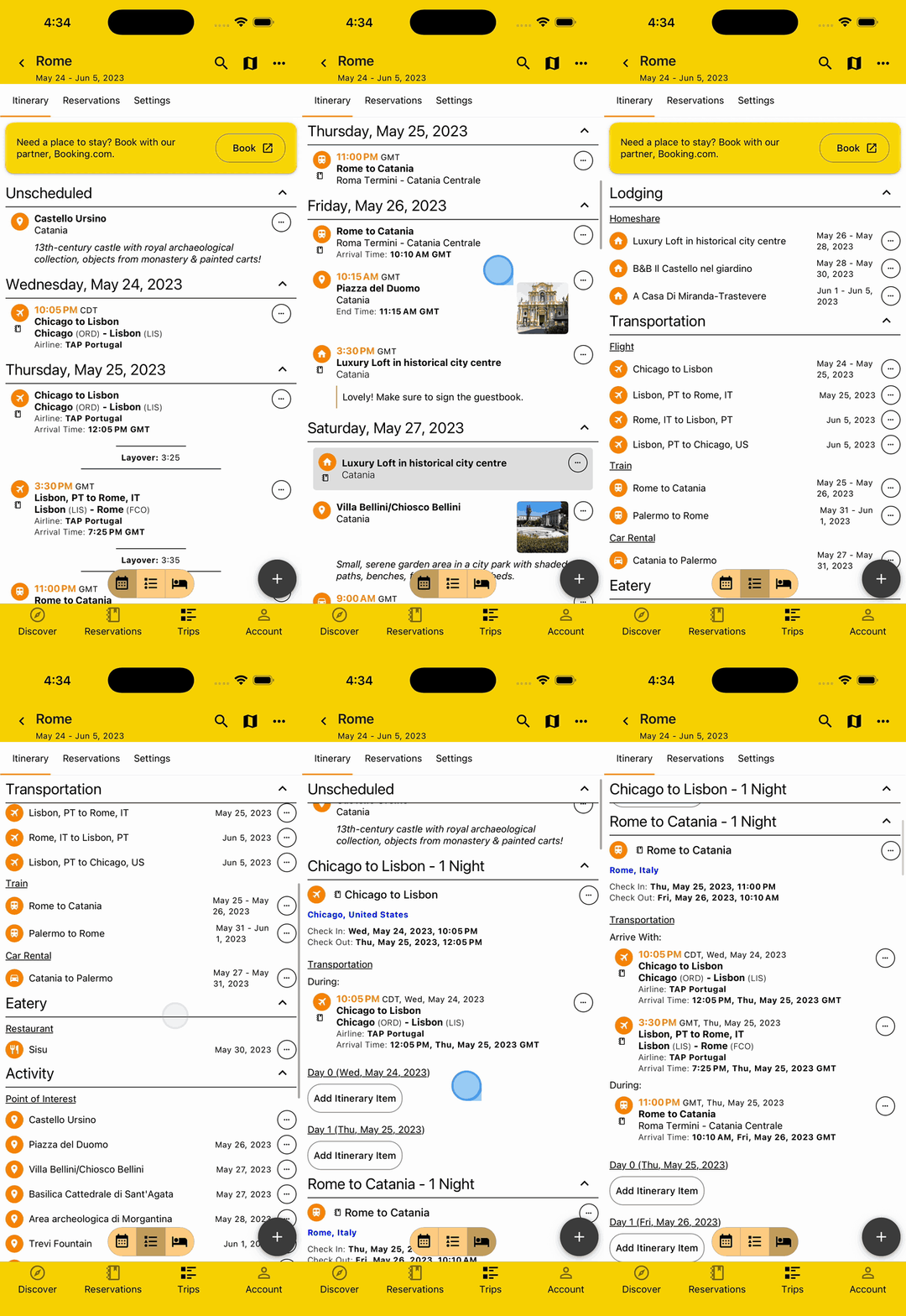
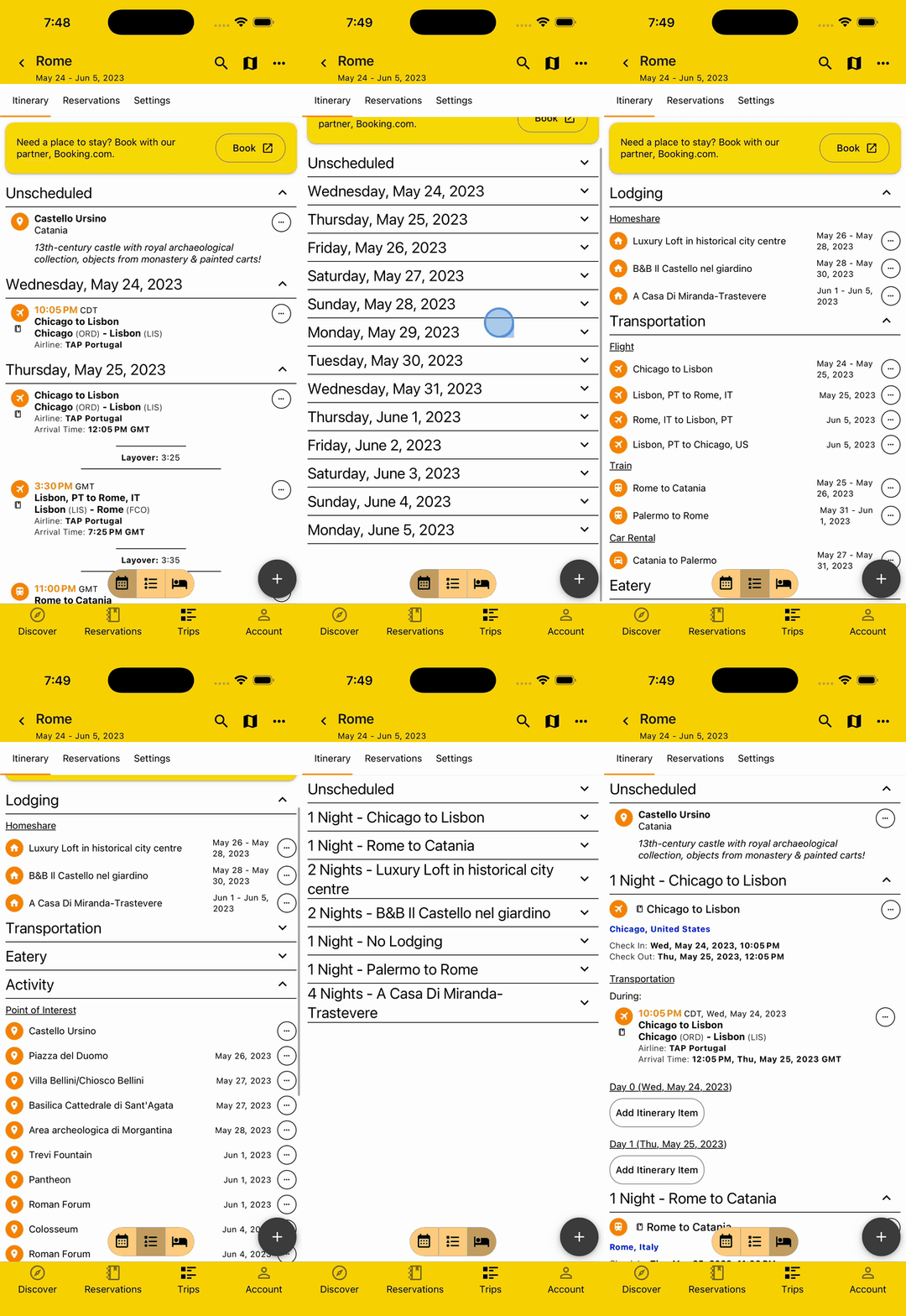
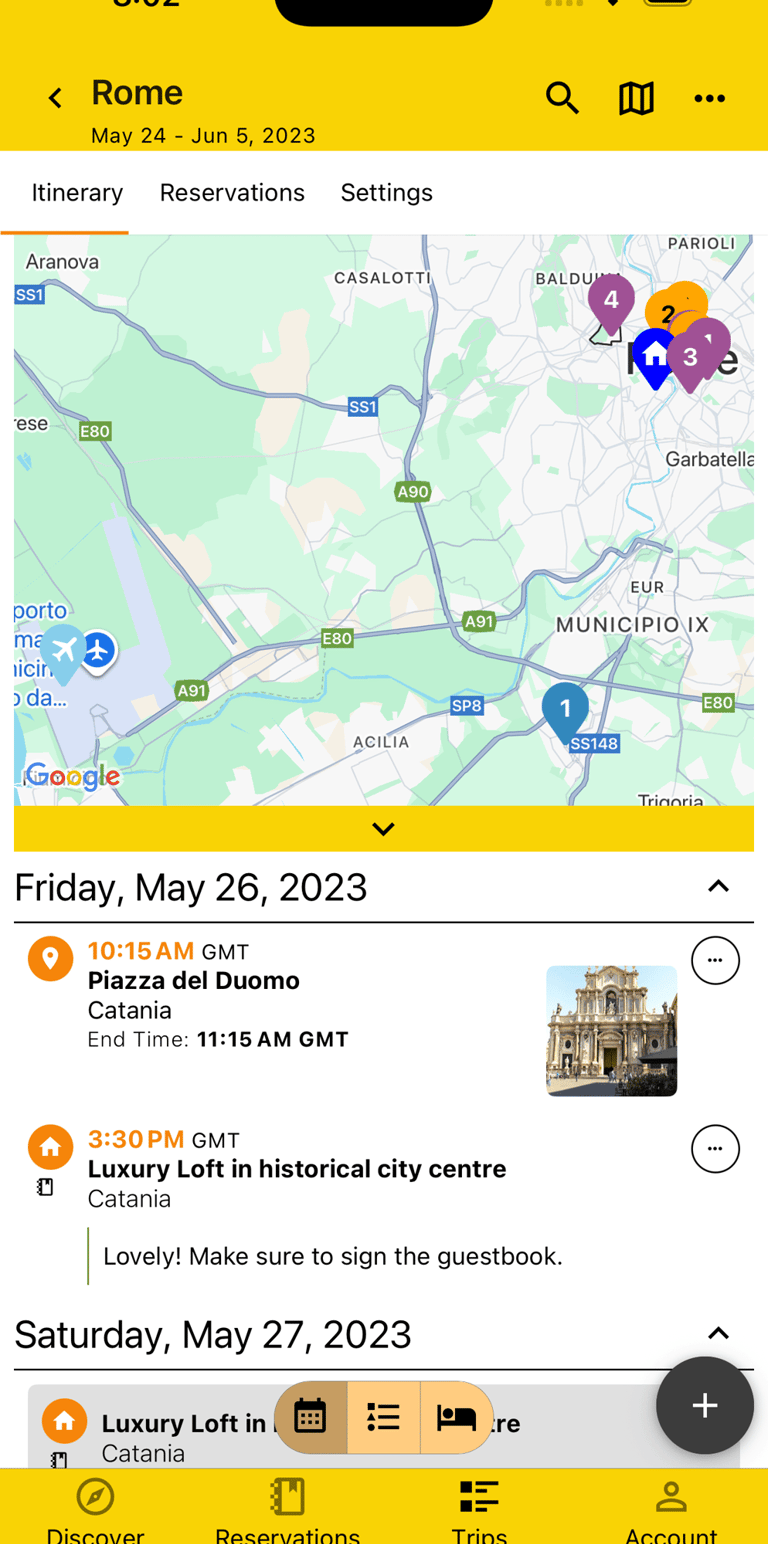
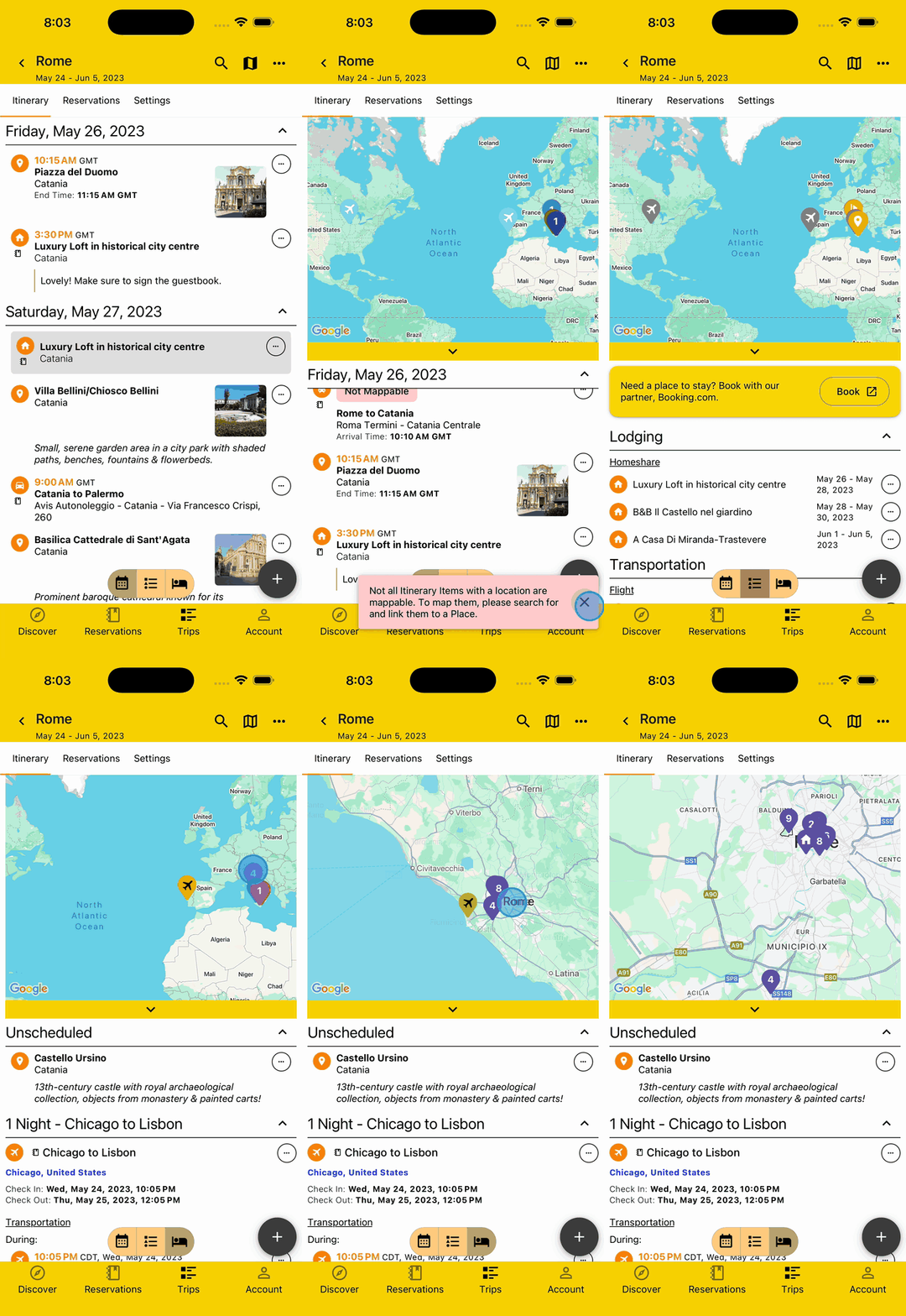
We all like to view information in different ways at different times so to assist with that, you can view your Itinerary by Day, Plan Type, or Lodging.
If you want to see what Plans you have on a specific date, use the Day view. If you want to see all your Lodgings or Flights grouped together, use the Plan Type view. If you want to see how you're arriving and what you're doing in each place you're staying, use the Lodging view.
Feature unique to BTravelrs
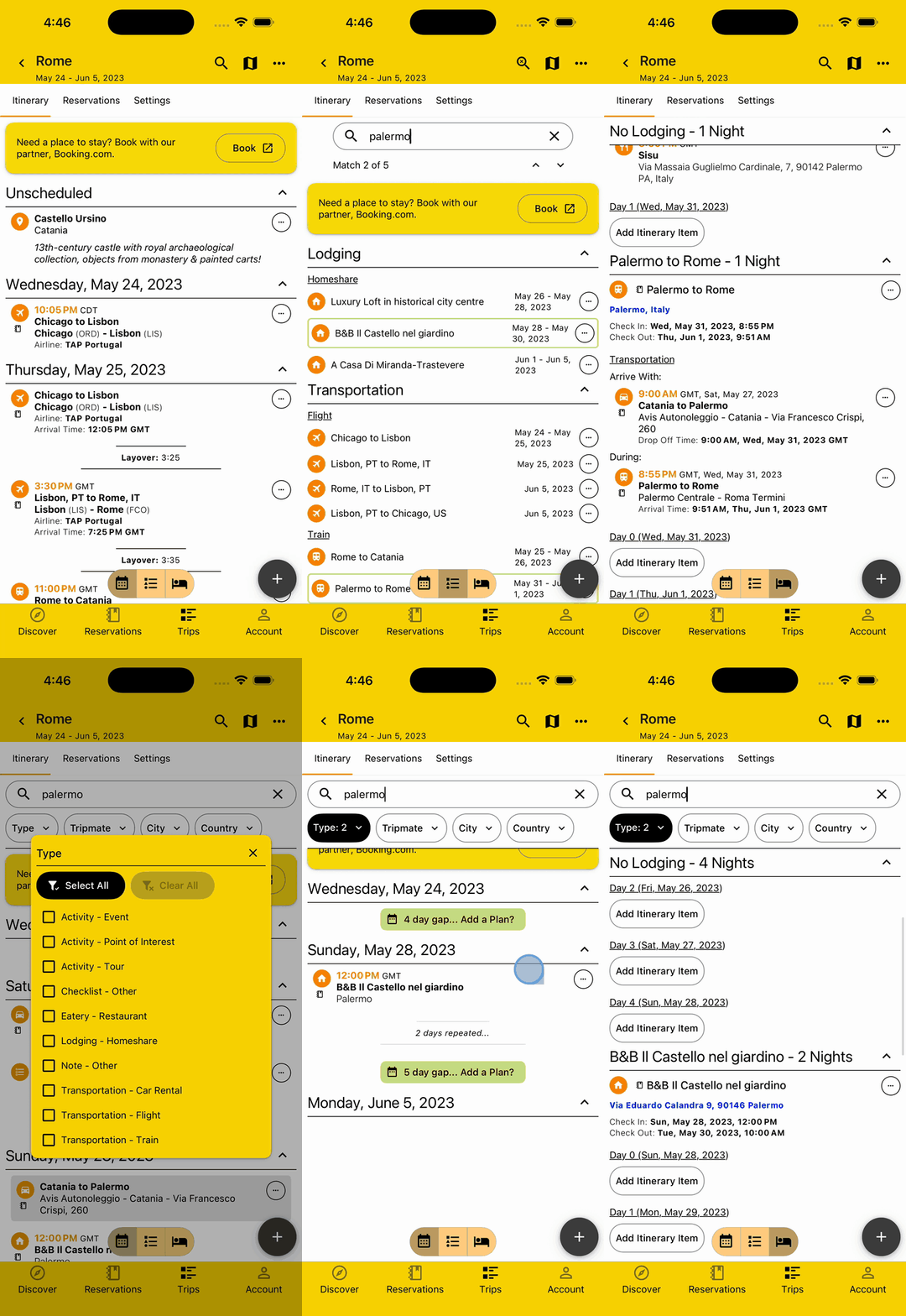
Search & Filter Itinerary
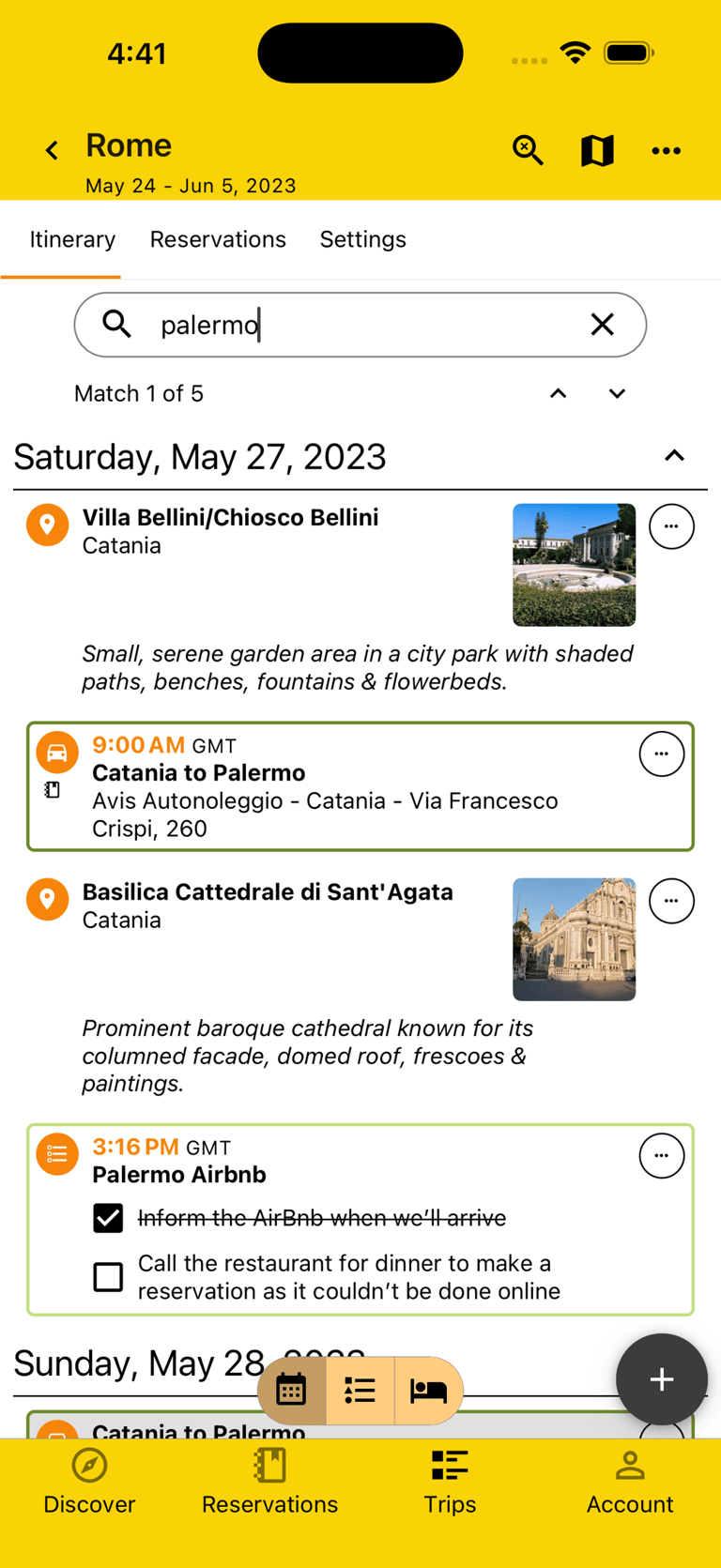
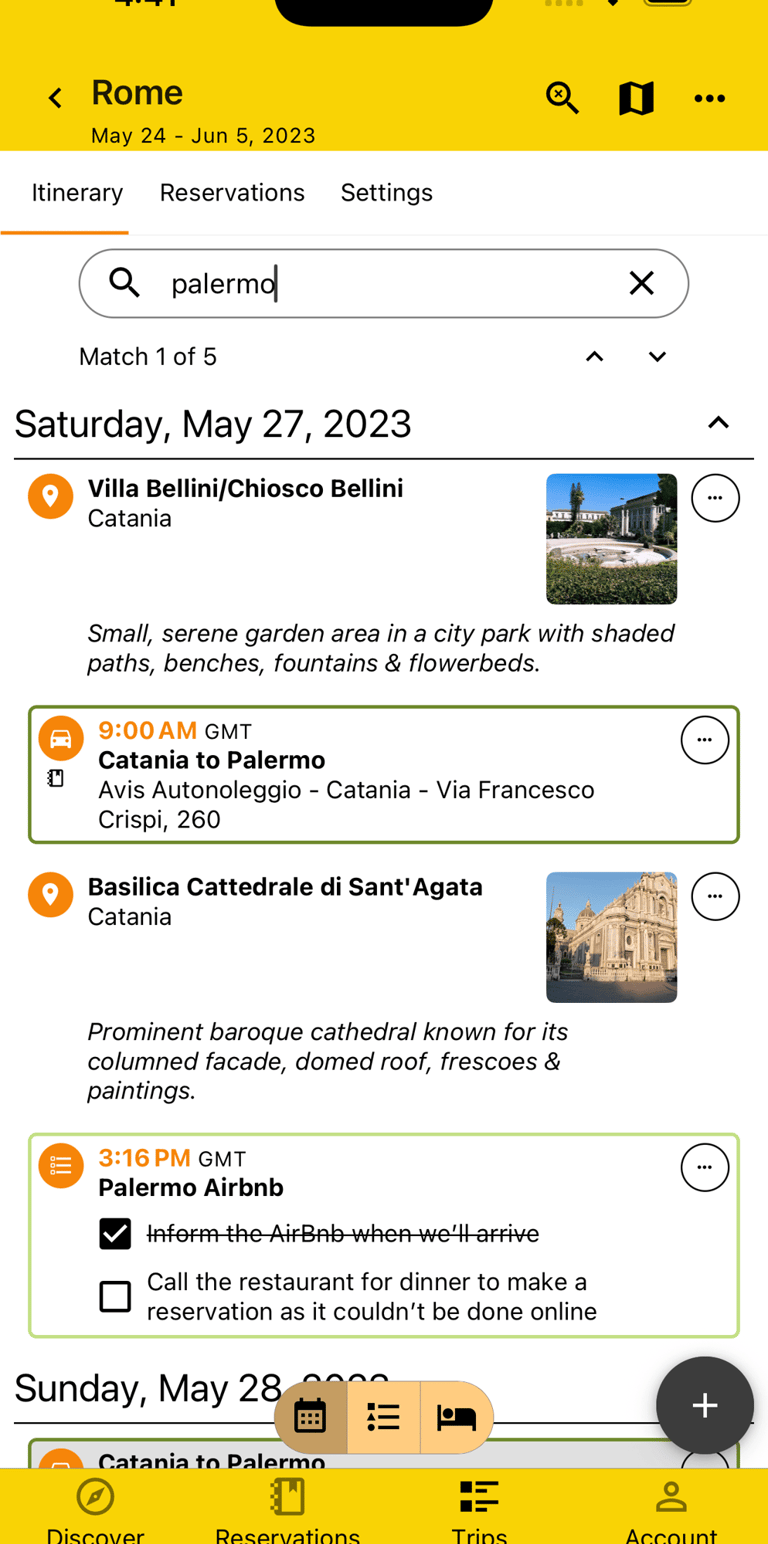
As your Itinerary starts to grow, you can take advantage of the search and filter functionalities.
Search will highlight found matches and navigate you directly to the first match, allowing you to toggle through all of them as needed.
Filter will limit what is shown on your Itinerary either by a set of keywords or by the Plan Type, Tripmates on an Itinerary Item, Country, etc.
Collapse Itinerary Sections
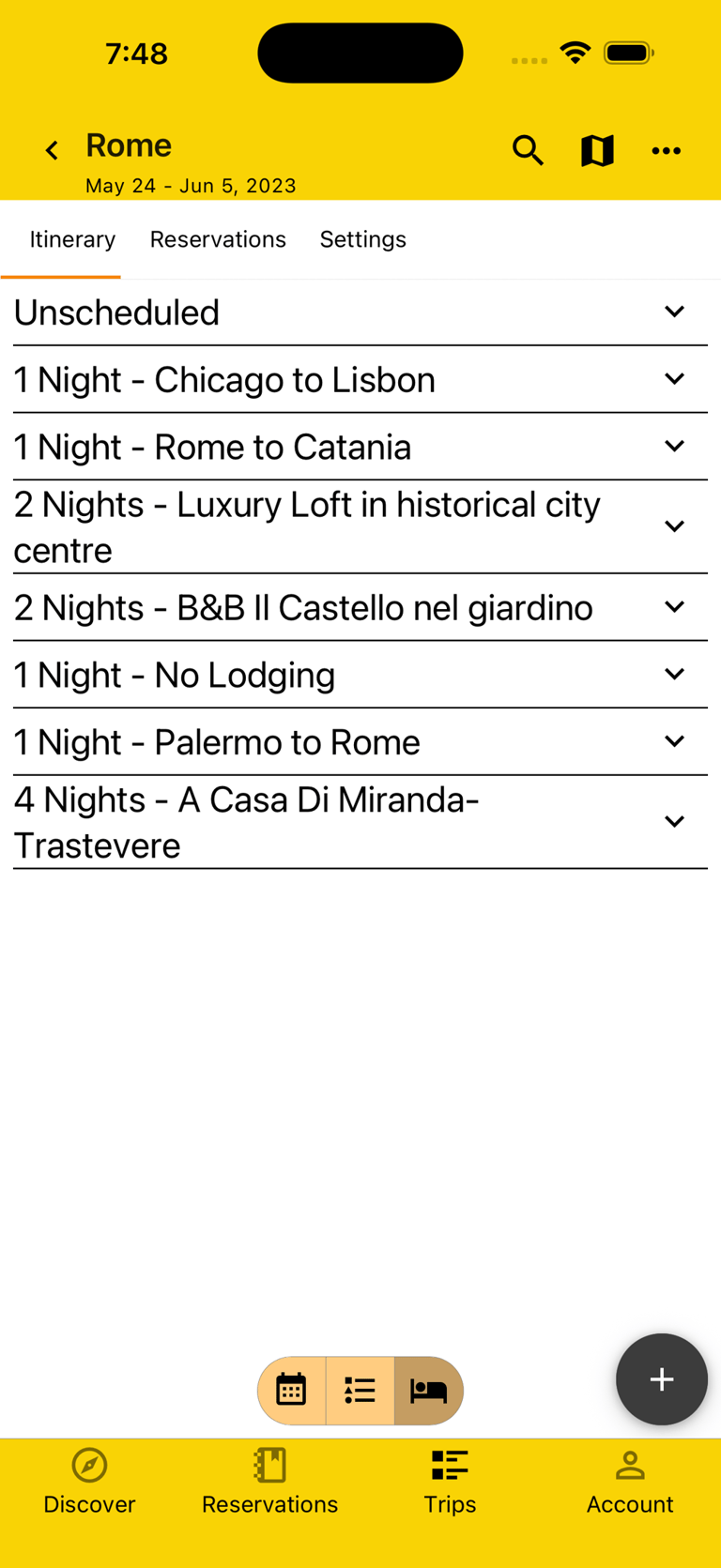
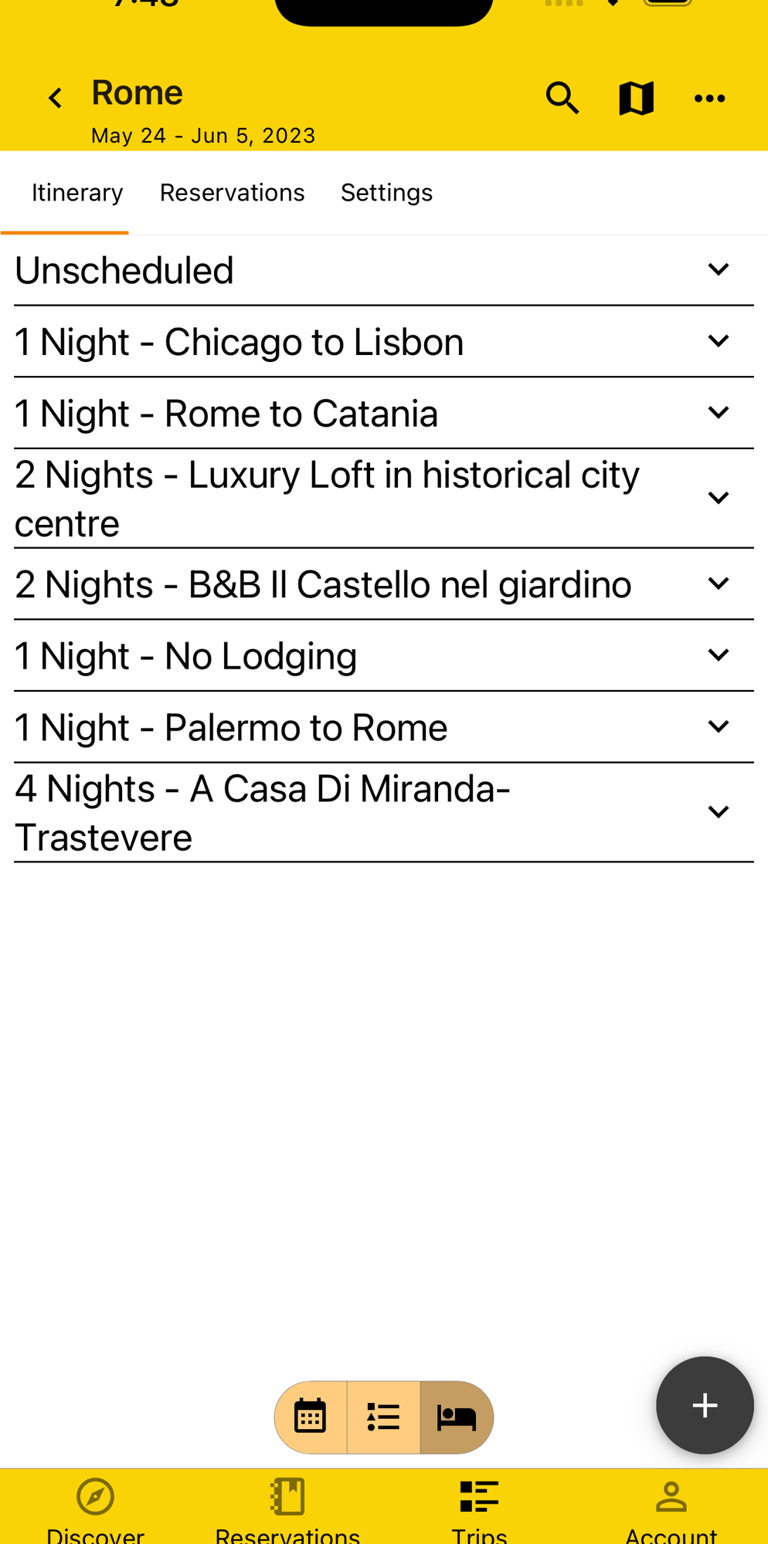
Each Itinerary view allows you to collapse and then expand each section, making it easier to see things at a high level, like how many nights you're staying at each Lodging or the Days of your Trip, or to hide information.
Feature unique to BTravelrs
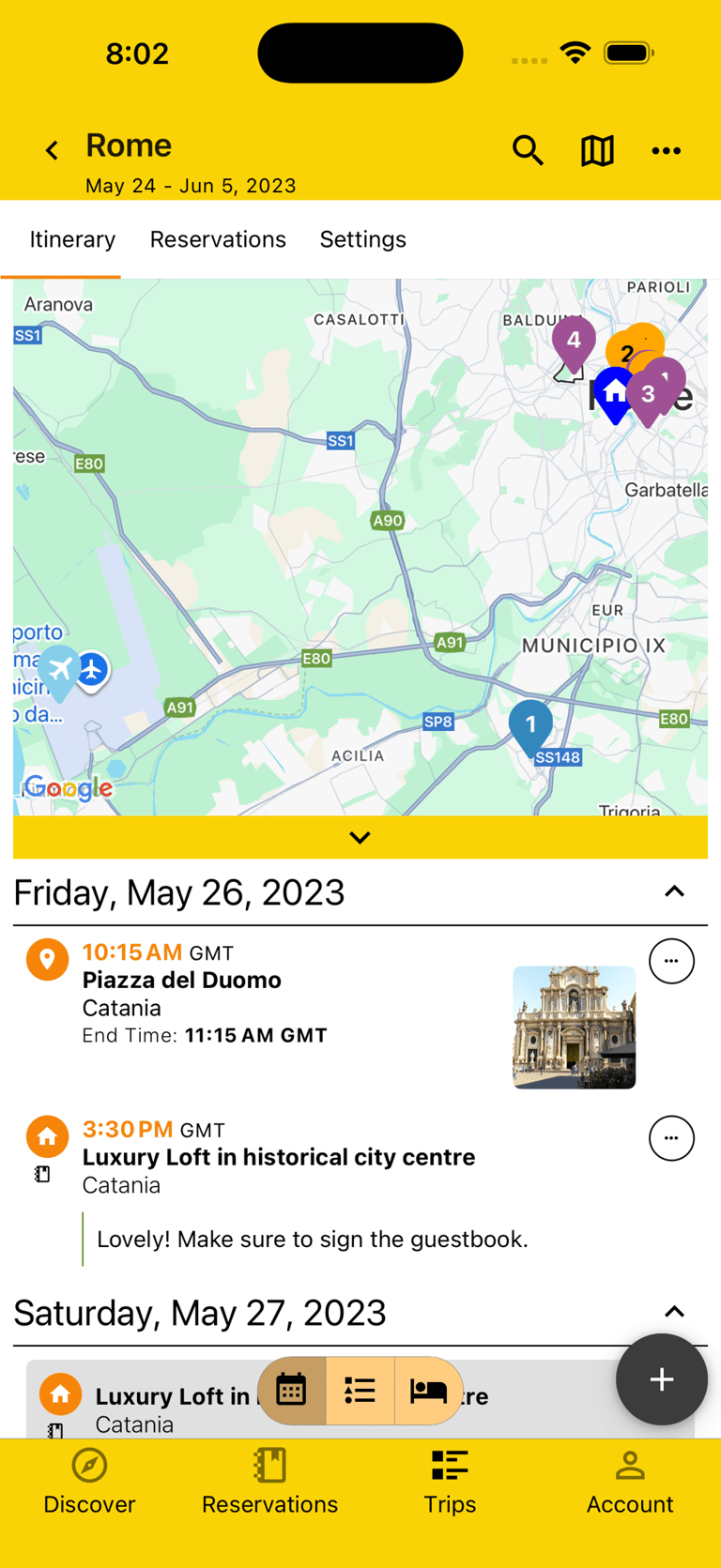
View Plans on Map
To get a visual idea of your Itinerary, view it on a Map, color coded for the Itinerary View you're looking at (Day, Plan Type, Lodging) and clickable so you can easily see the details of each map marker.
Manage Trip Reservations
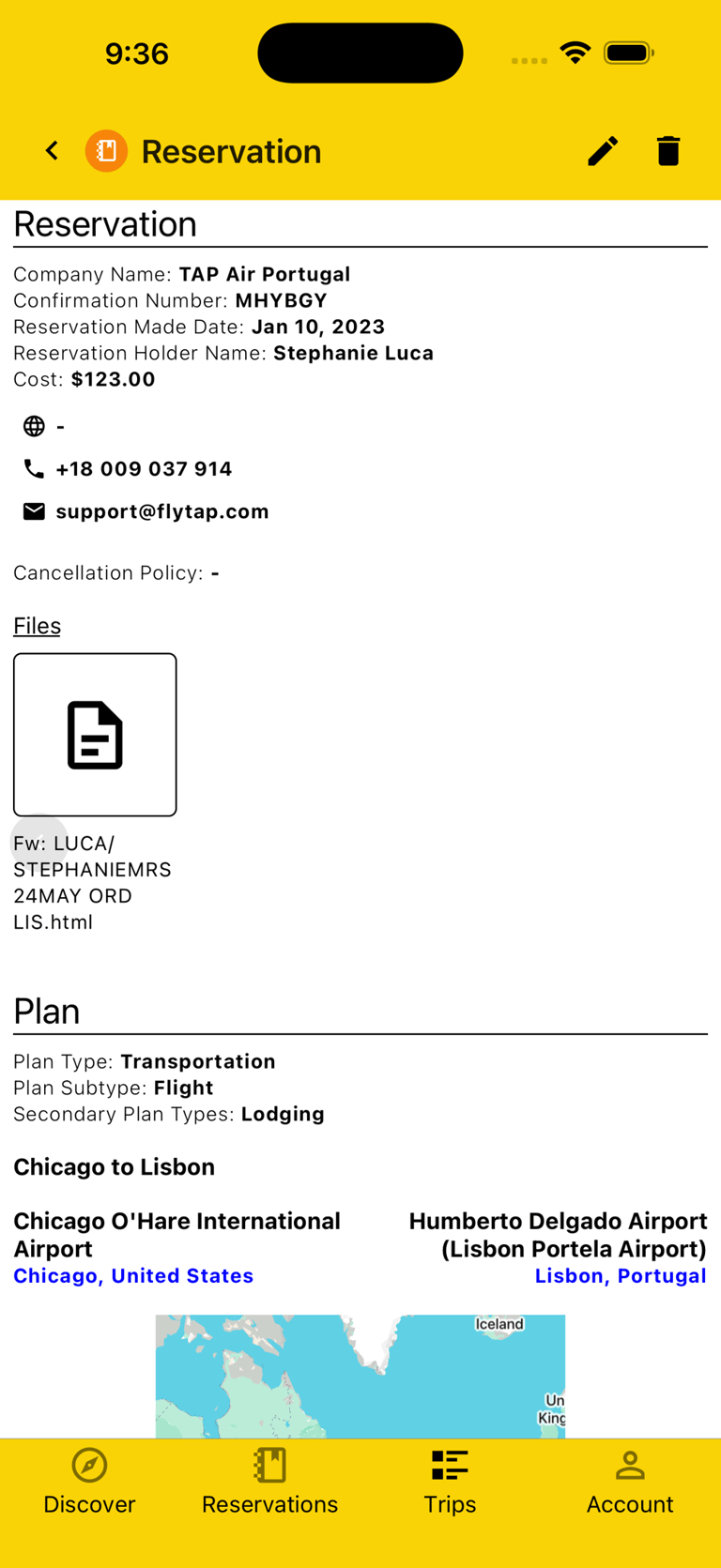
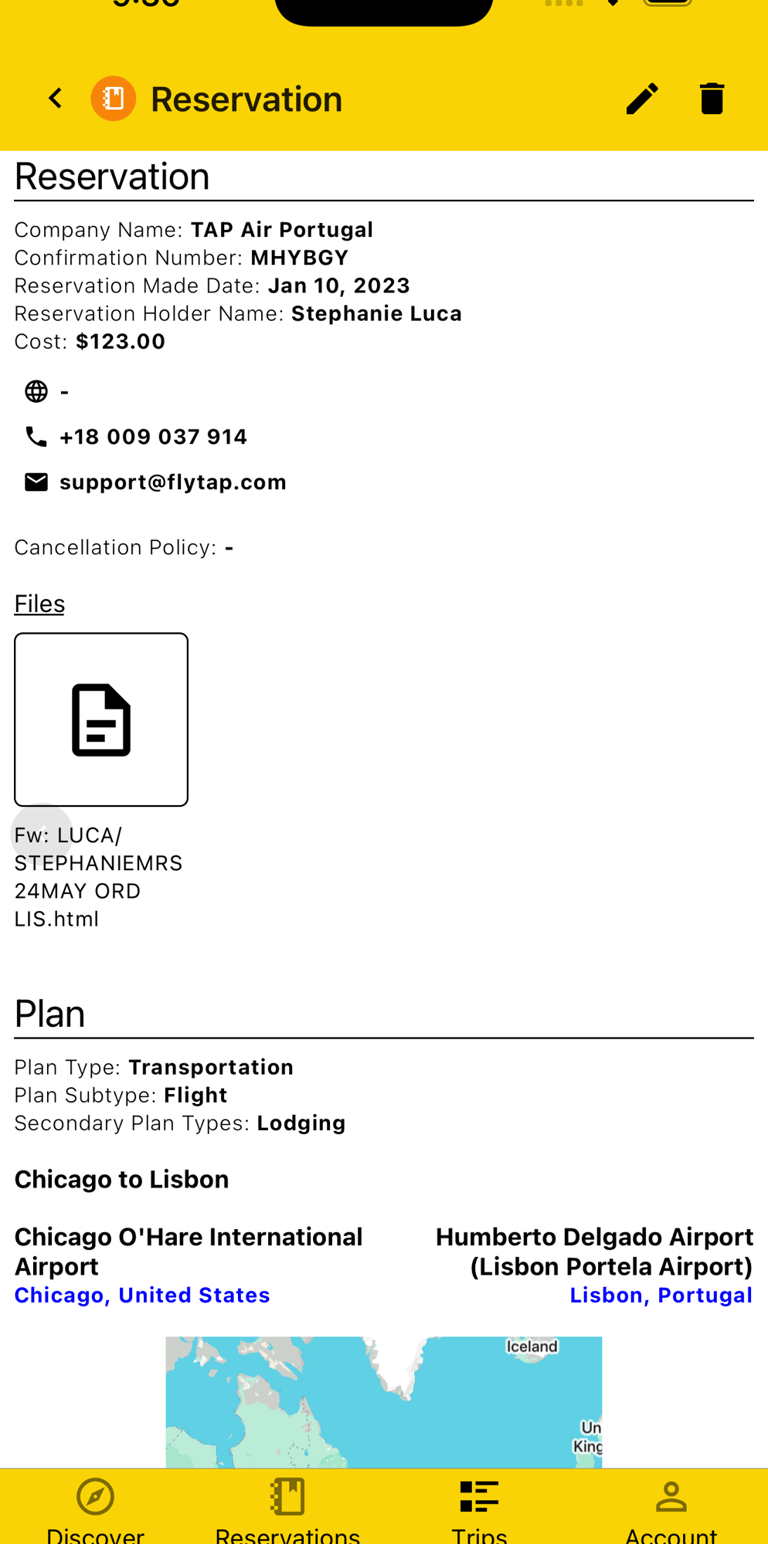
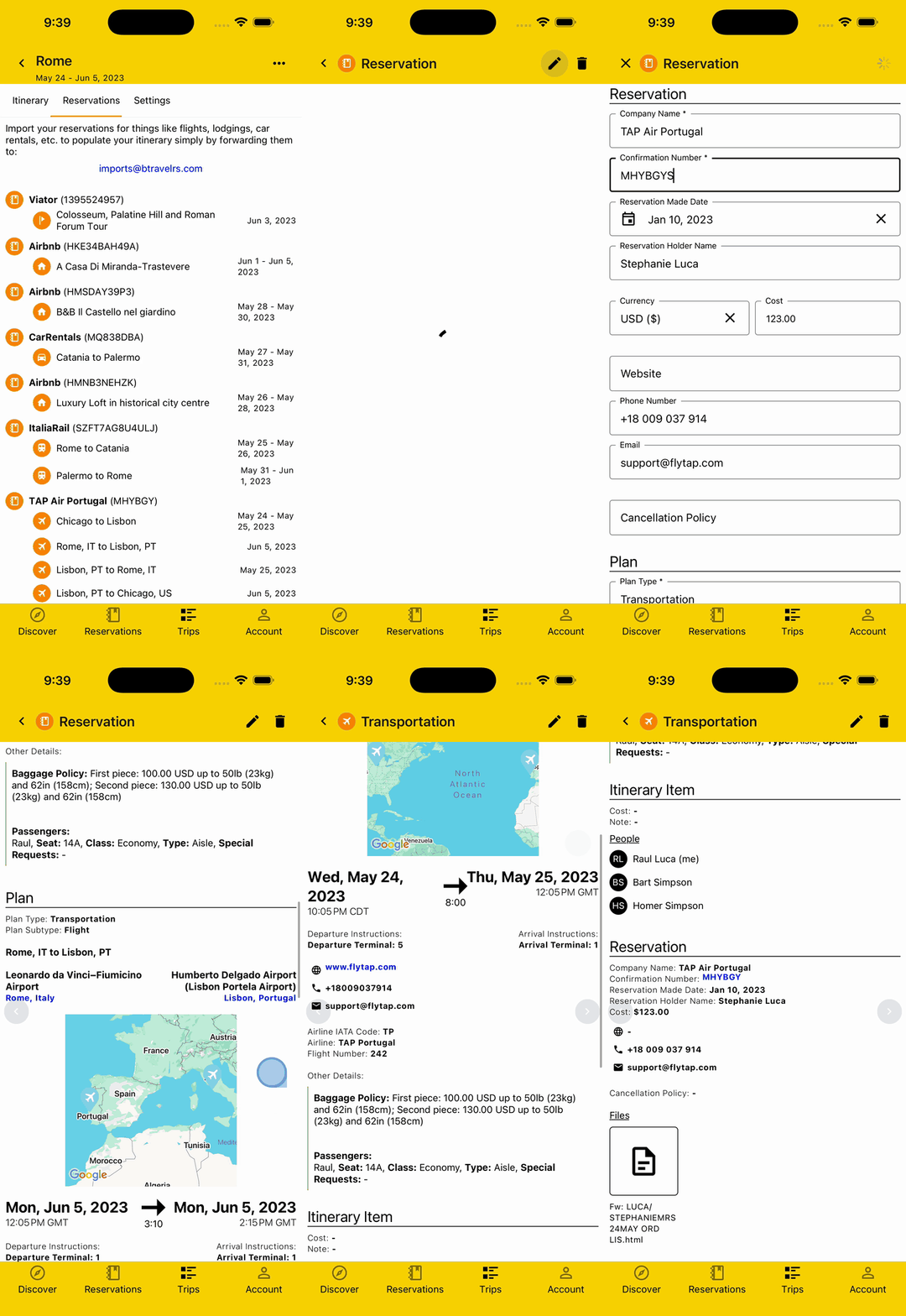
Once you've imported your Reservations, you can view and manage them directly from your Trip. You can view all the details of the Reservation, including the original email it was parsed from and all the Plans it corresponds to. If needed, you can make edits to the Reservation with ease.
All Reservation Plans show on the Itinerary view and the Reservation a Plan corresponds to can be accessed from the Itinerary Item itself.
Collaborate with Tripmates
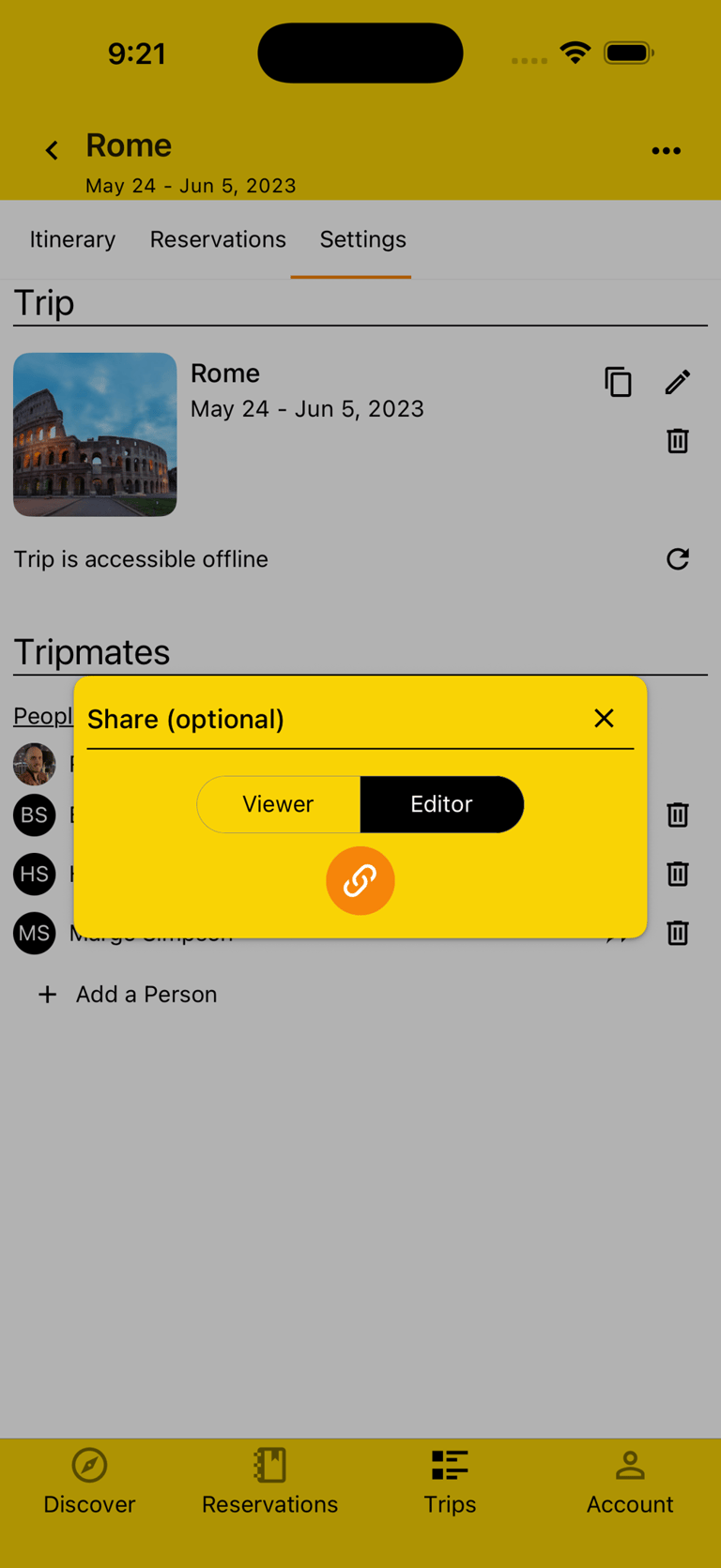
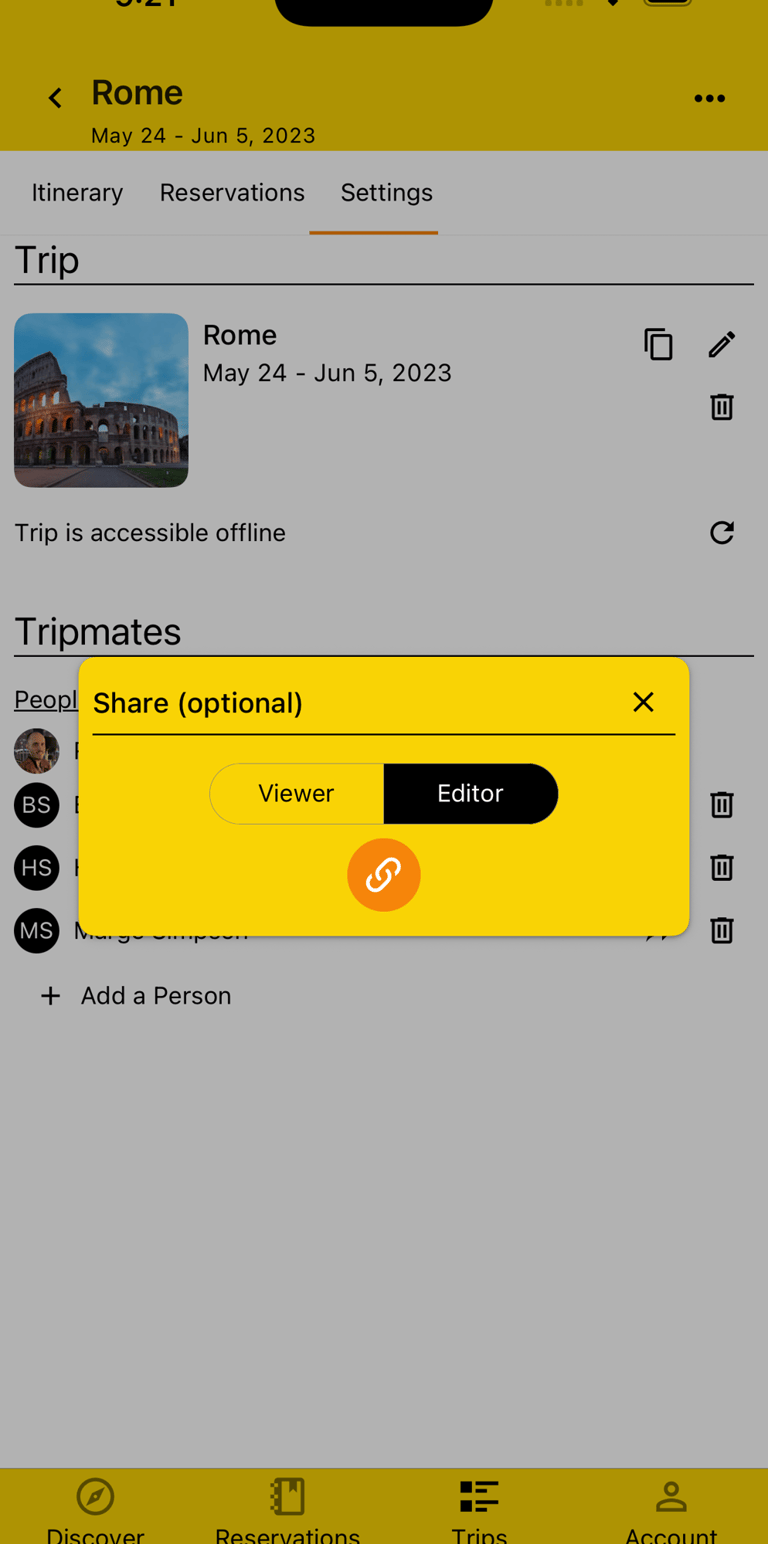
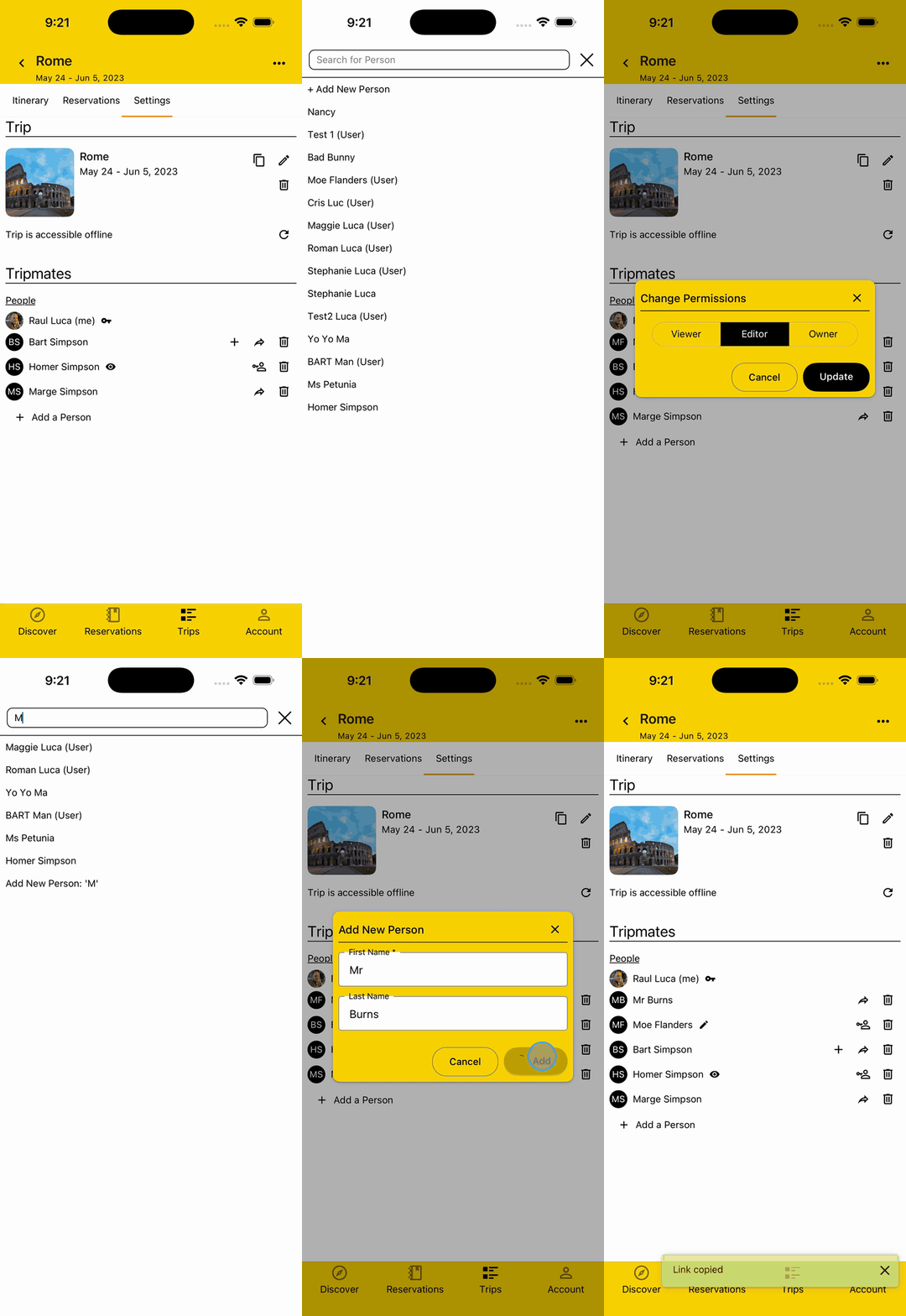
Whether you're traveling solo and just want to share a view-only version of your Trip with friends or you're going with your family and want others to be able to collaborate, you can do so by adding them to the Trip.
You can add Tripmates even before they have an account and send them a link to join BTravelrs, or use this functionality for Tripmates not intended to be app users, like children.
You can provide View, Edit, or Owner permissions to others, each with it's own unique level of access.
Feature unique to BTravelrs
Use Secondary Plan Types
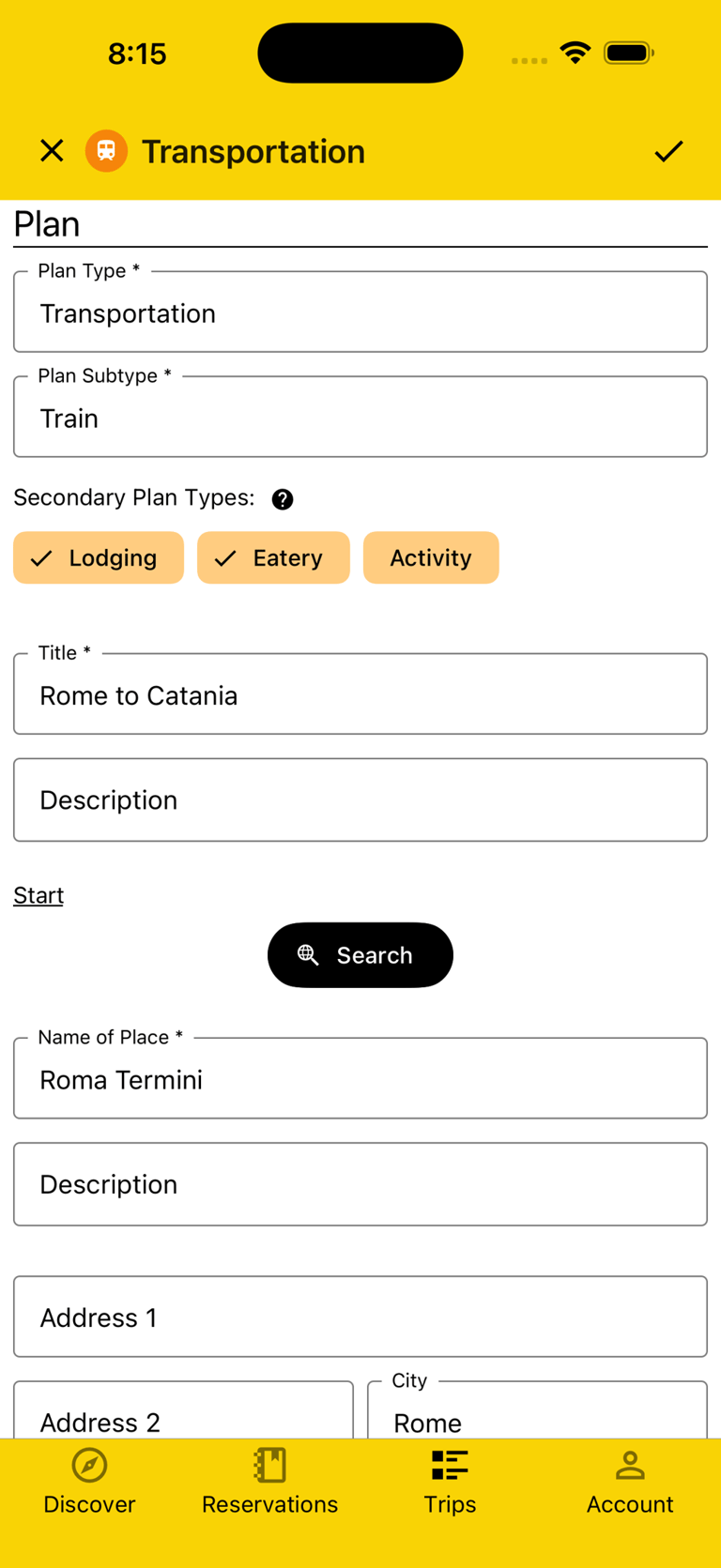
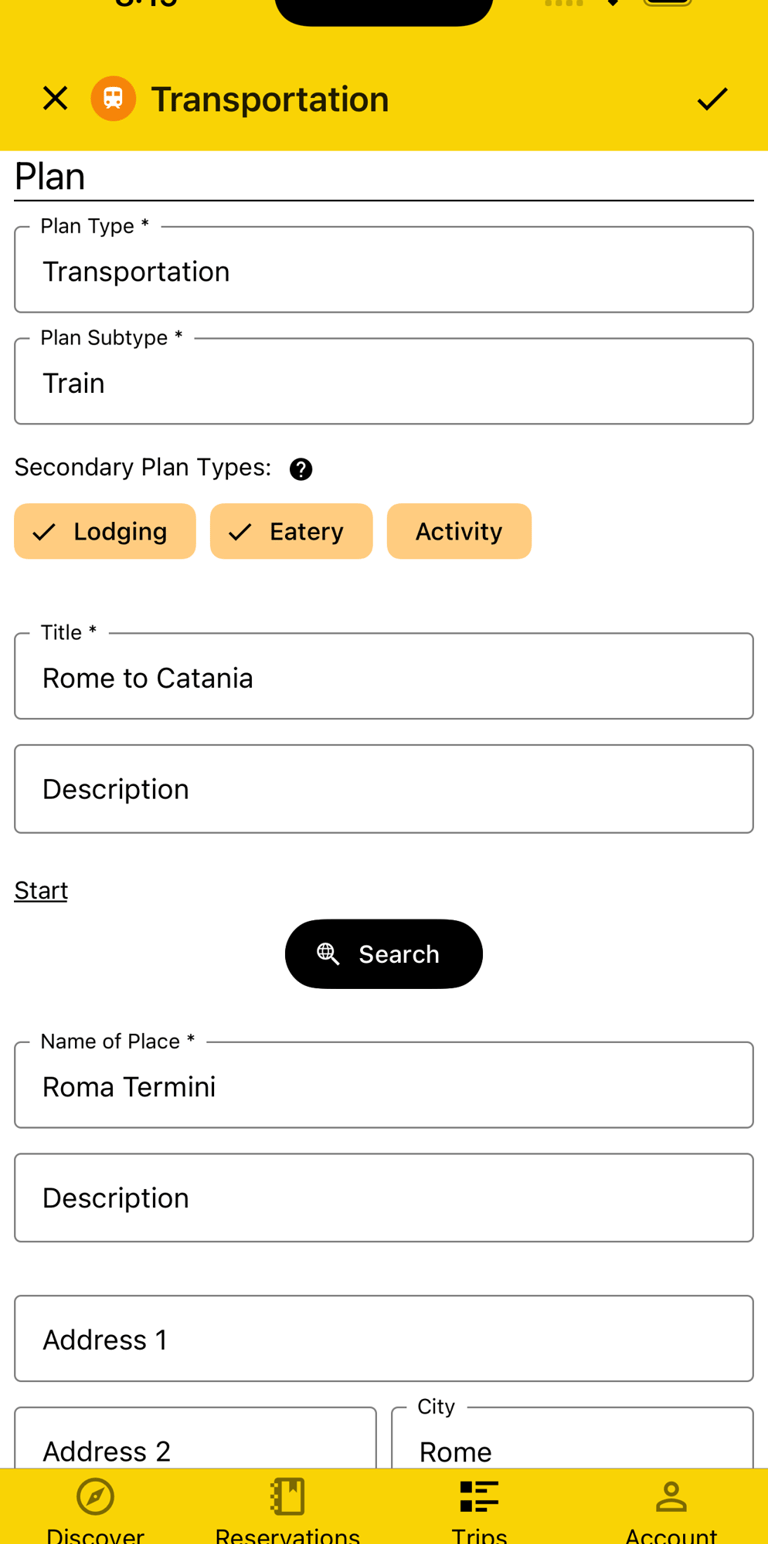
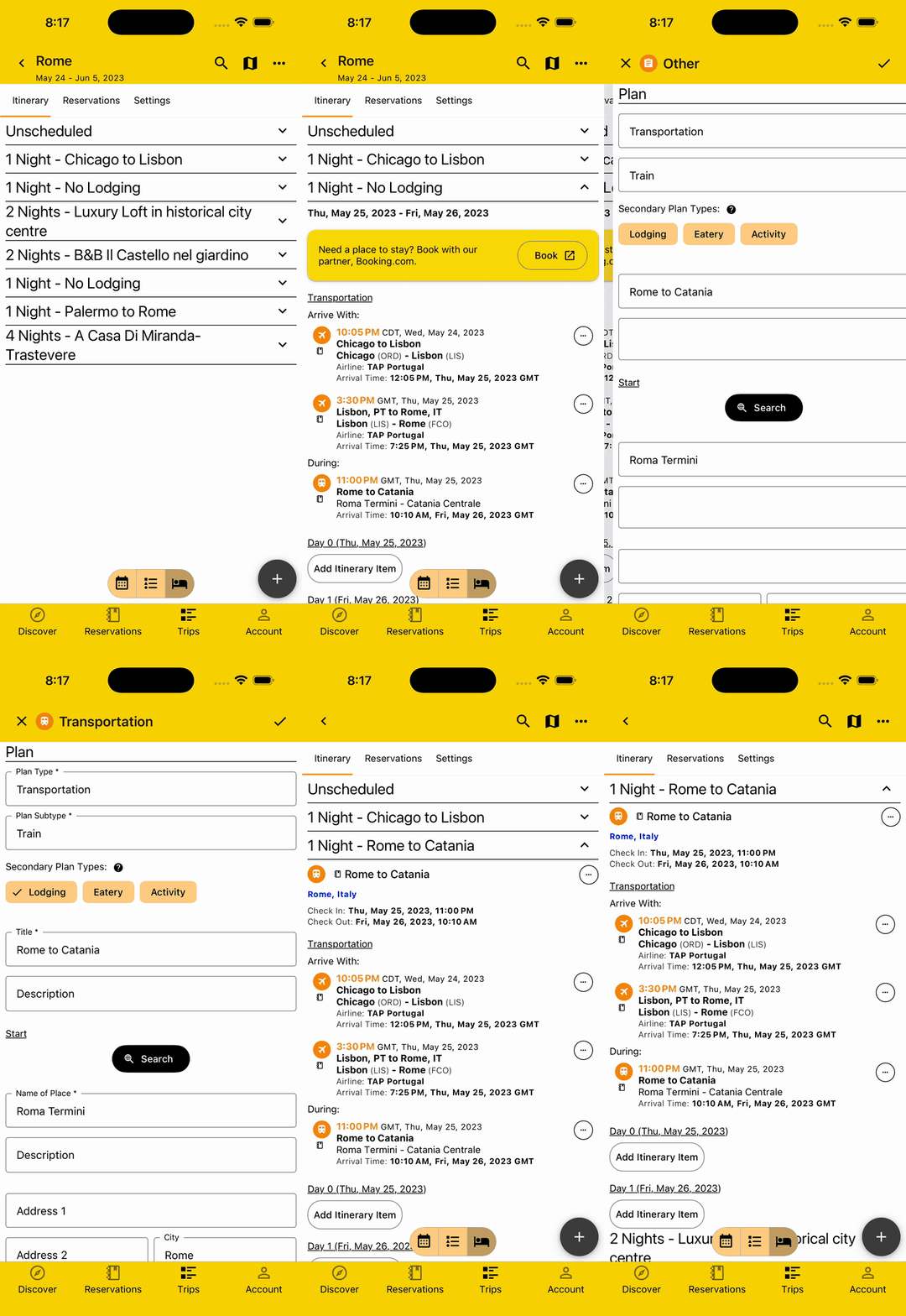
Sometimes a Plan isn't just a Lodging or Transportation, it's both. Think of an overnight train that both transports you and is where you sleep, or a cruise that also feeds you.
Adding a non-Lodging Plan as a "Lodging" Secondary Plan Type allows the app to treat it as a Lodging as well in cases like when you're viewing the Itinerary by Lodging.
Feature unique to BTravelrs
Create Checklists & Notes
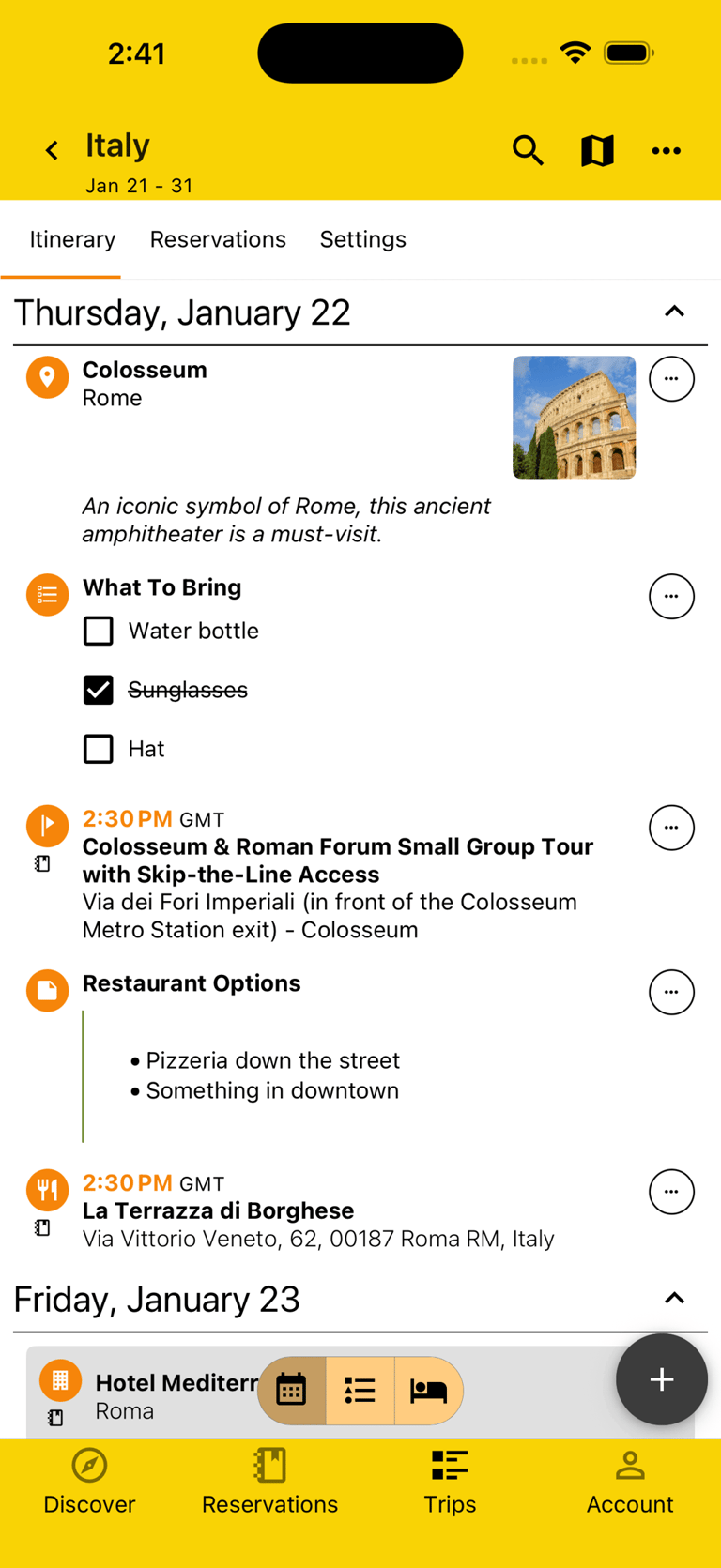
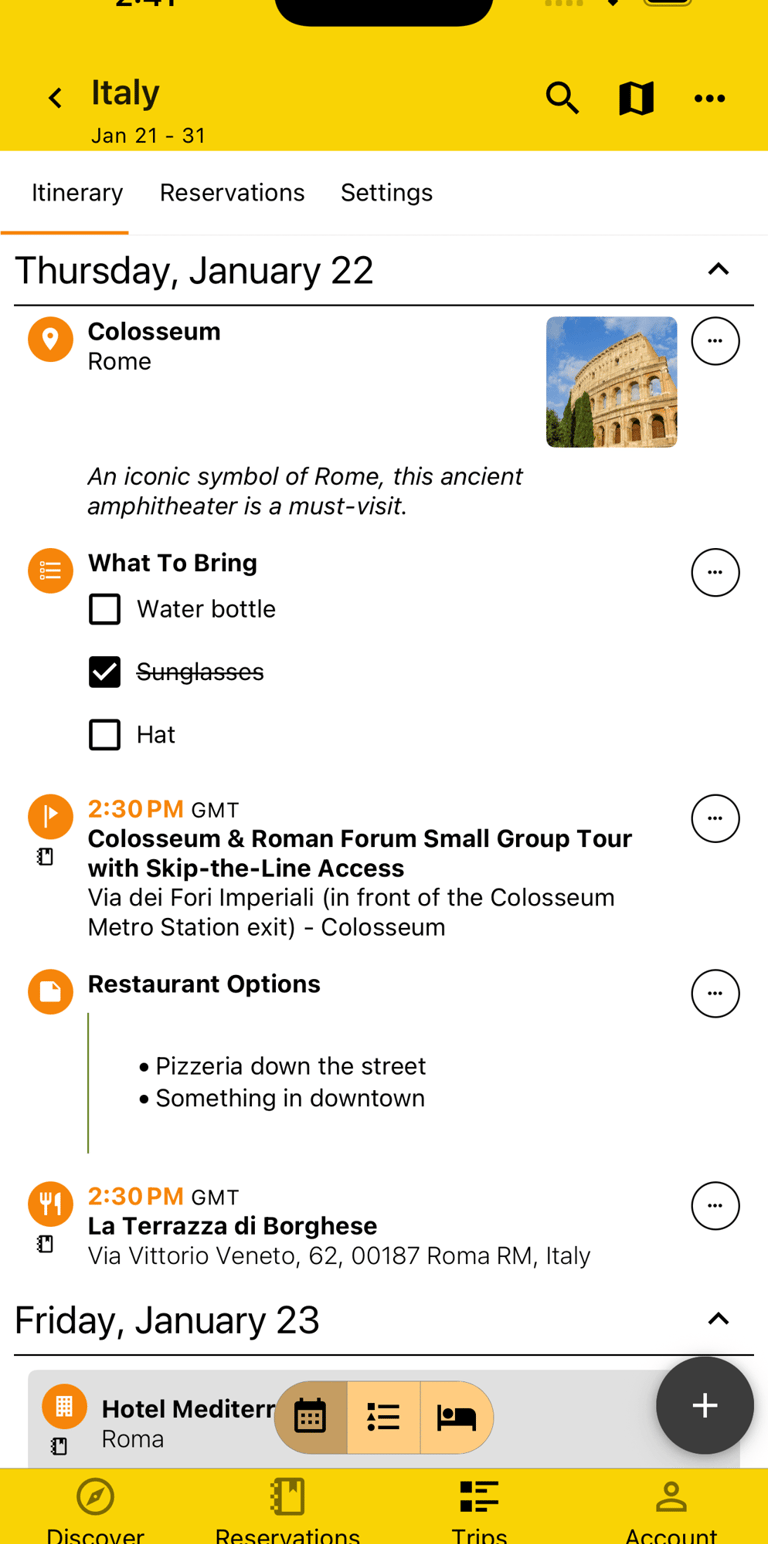
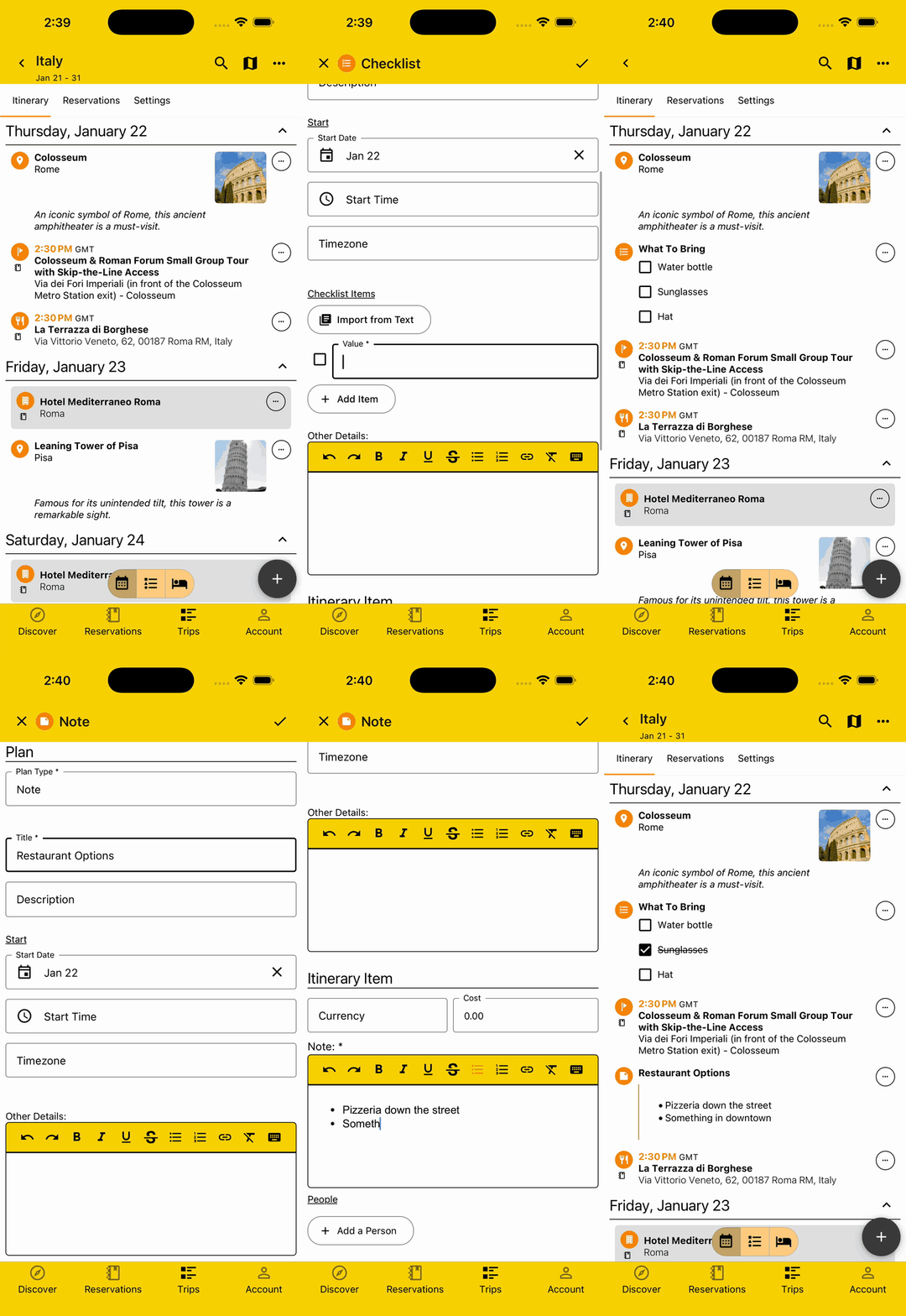
For those times you need to keep track of some todos, just use an inline Checklist, saved to a specific date and/or time.
And if you just want to track some thoughts, use a Note, with various formatting options to give you flexibility to organize it all.
View Itinerary without Clutter
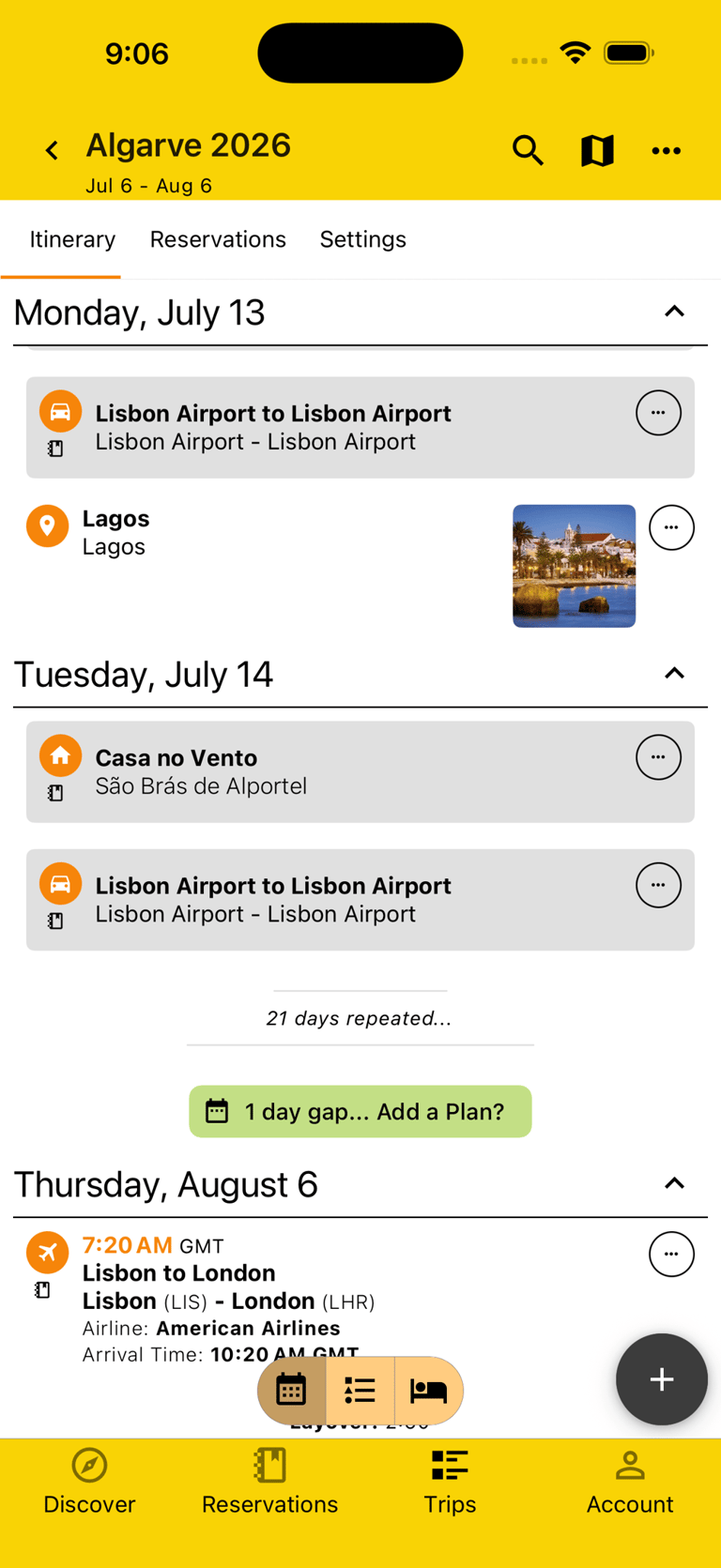
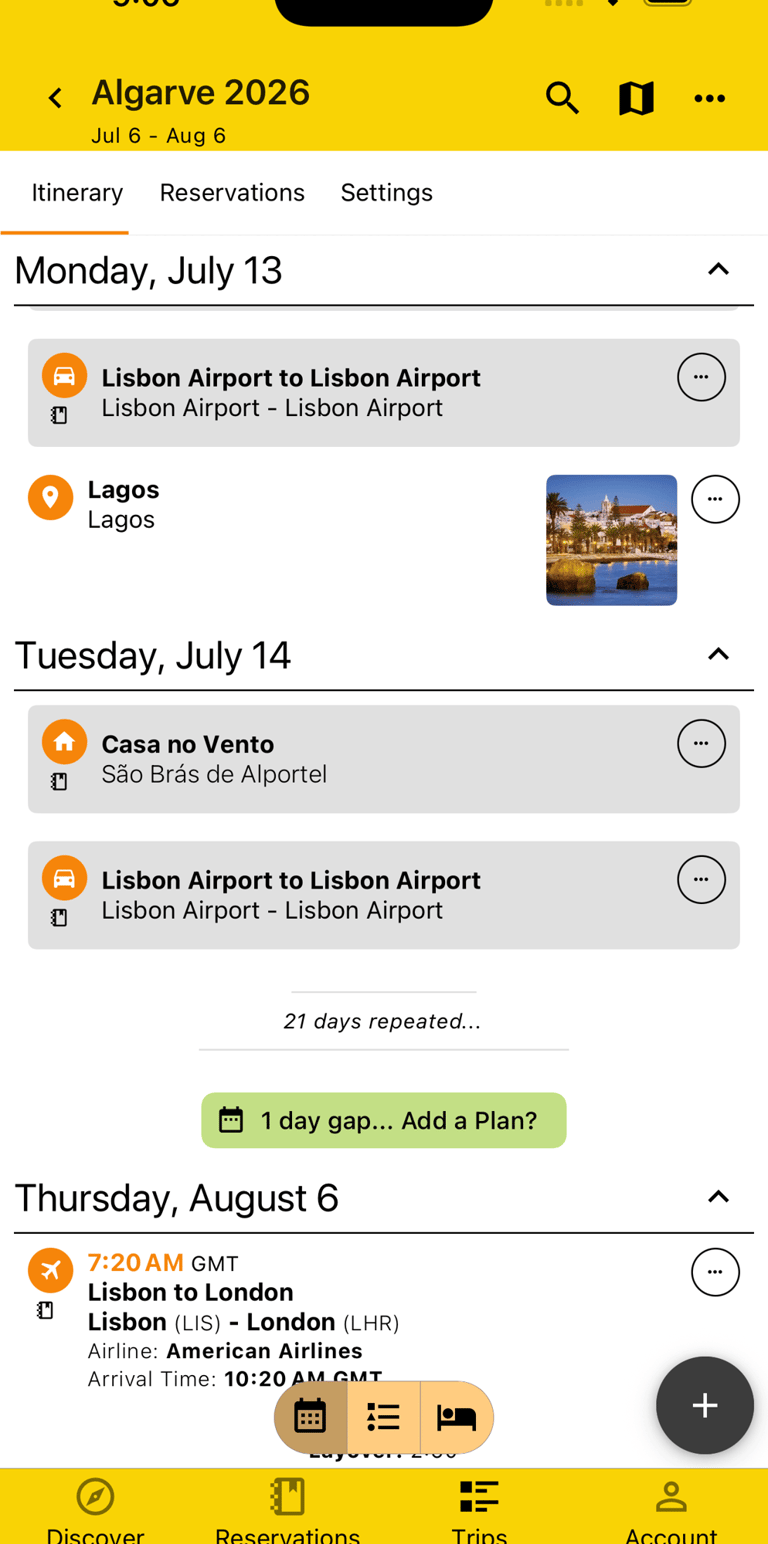
The Day view can get fairly long and cluttered, so to help with that, empty days are removed and a button showing the number of days and prompting to add a Plan is shown, repeated days are collapsed and a message is shown, and Plans that span multiple days are shown differently on days they don't start or end on.
Feature unique to BTravelrs
View Layovers
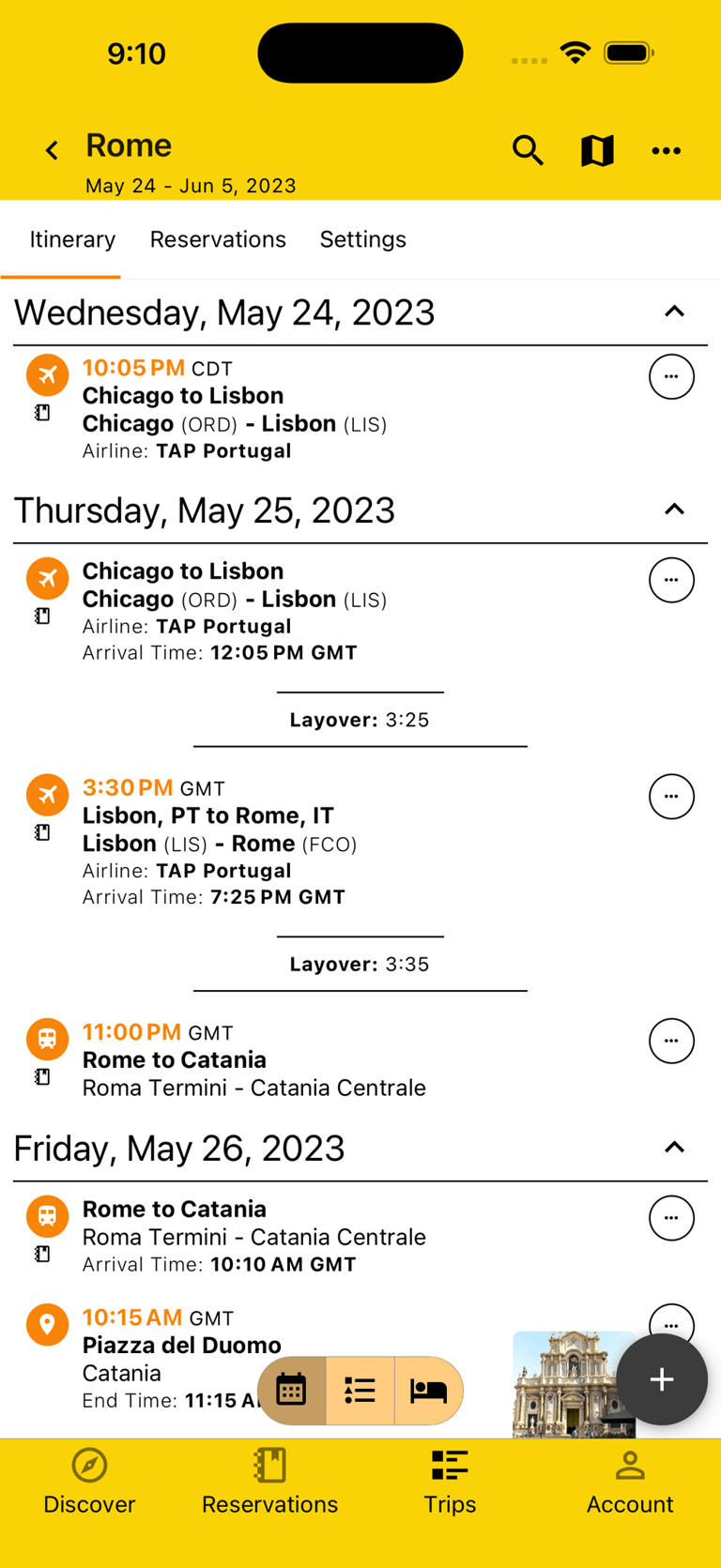
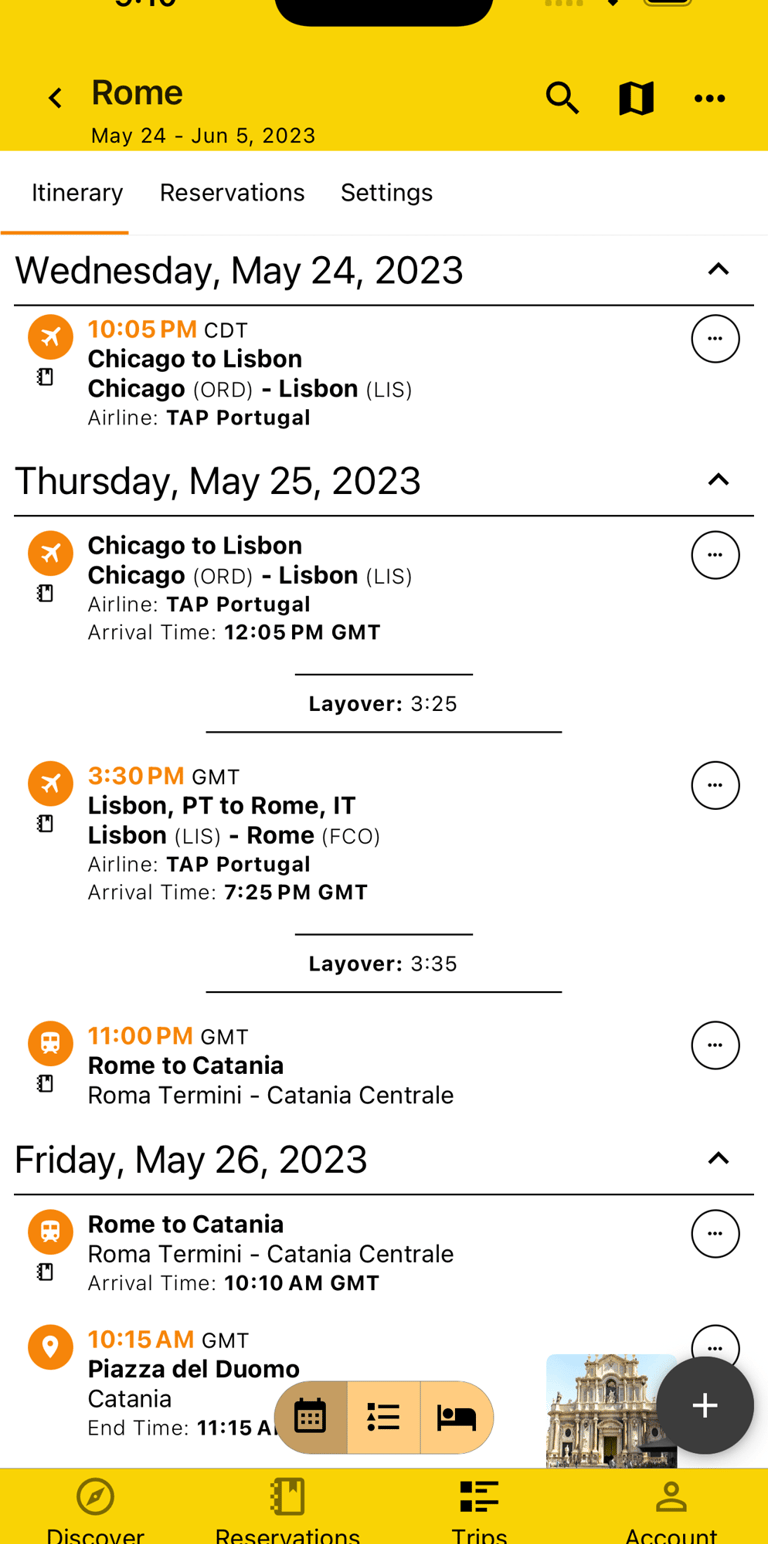
To quickly view time between transit, layovers are shown between each Transportation Plan, not just for flights, as long as they are no other Plans between them.
Access Trip Offline
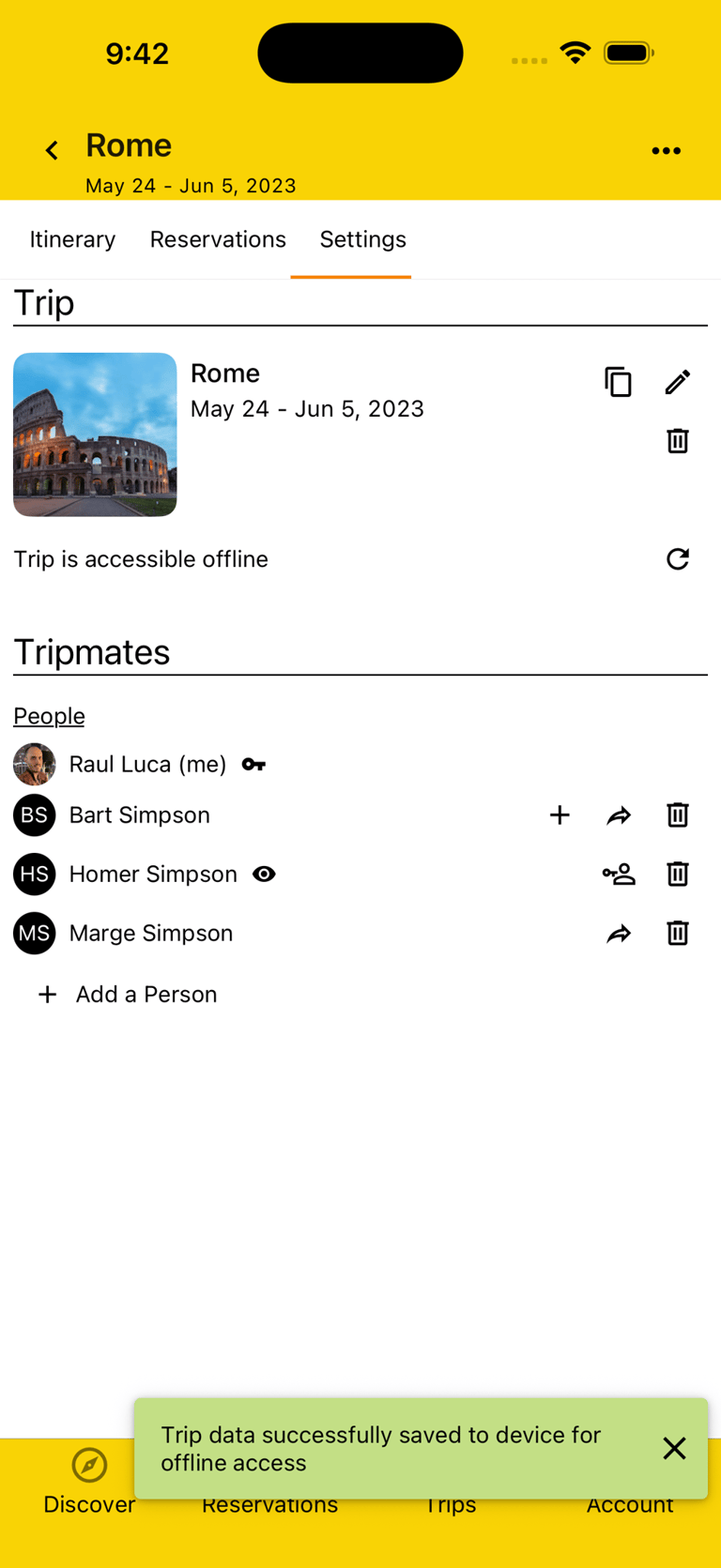
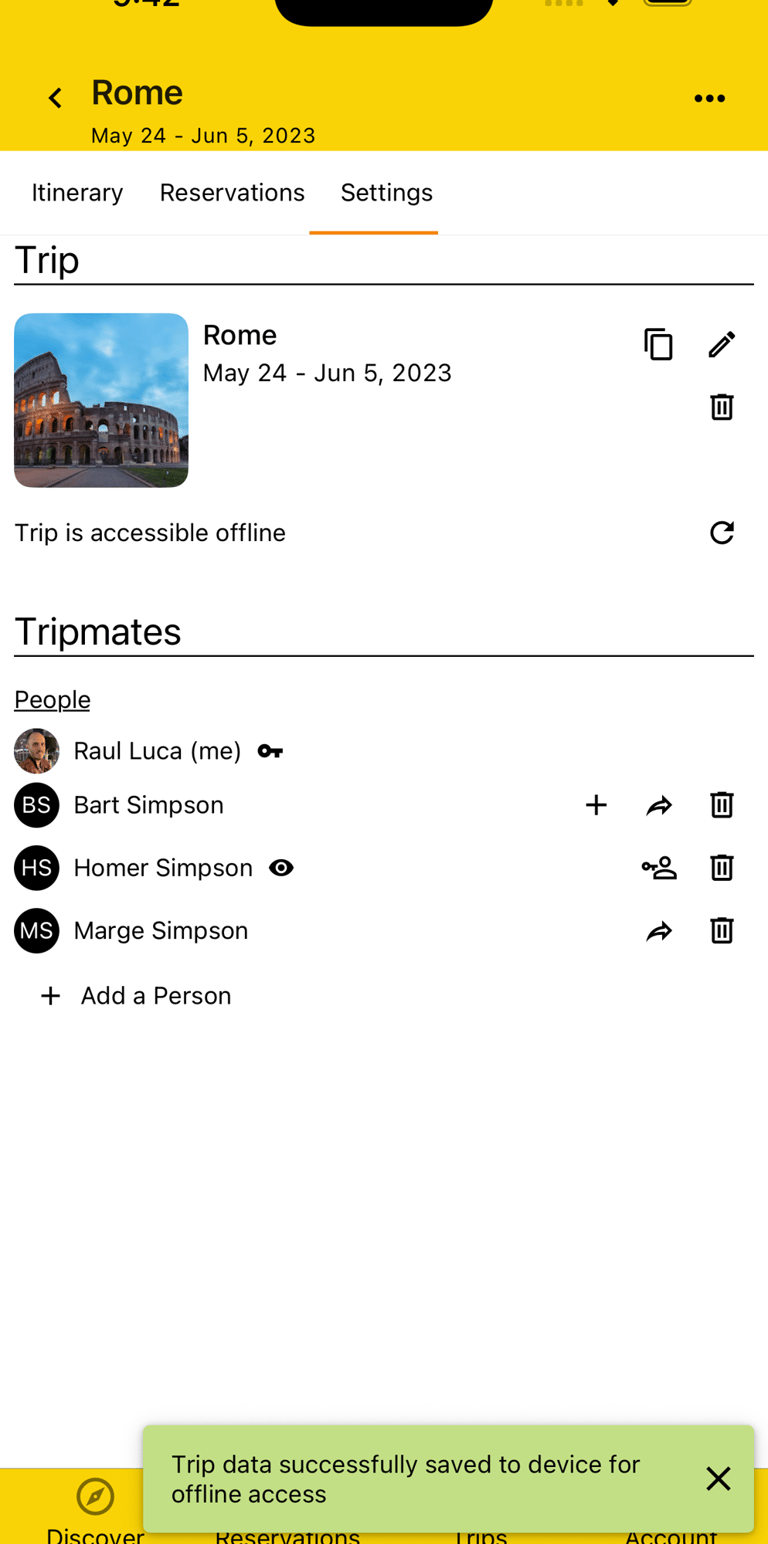
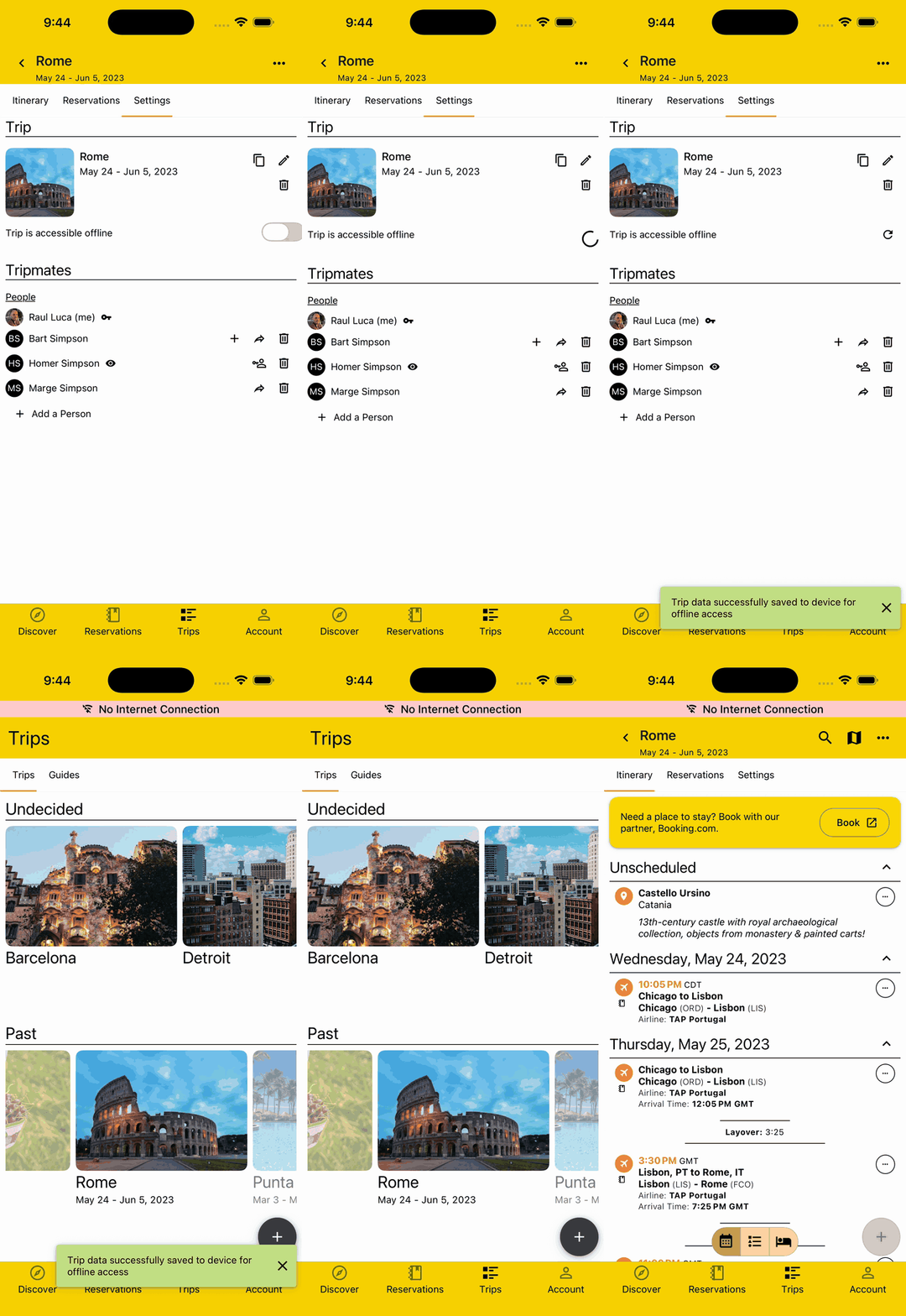
Trips can be downloaded to a device and made available offline simply by toggling this on in the Trip Settings. Subsequently, the Trip and its Itinerary, Reservations, and Settings will all be viewable without cellular access or an internet connection.
Your Ultimate Travel Companion
Connect
© 2026. All rights reserved.


Say Hi!
Get the App